In this help article we explain how you can change your PHP max_execution_time. If you have a Ecenica web hosting service you set your own PHP max_execution_time setting.
This lets you configure your Ecenica web hosting to run the settings your WordPress site needs.
Steps to change your PHP max_execution_time
- Log in to cPanel.
- For help accessing your cPanel see Where do I log in to my hosting control panel
- Click Select PHP Version.

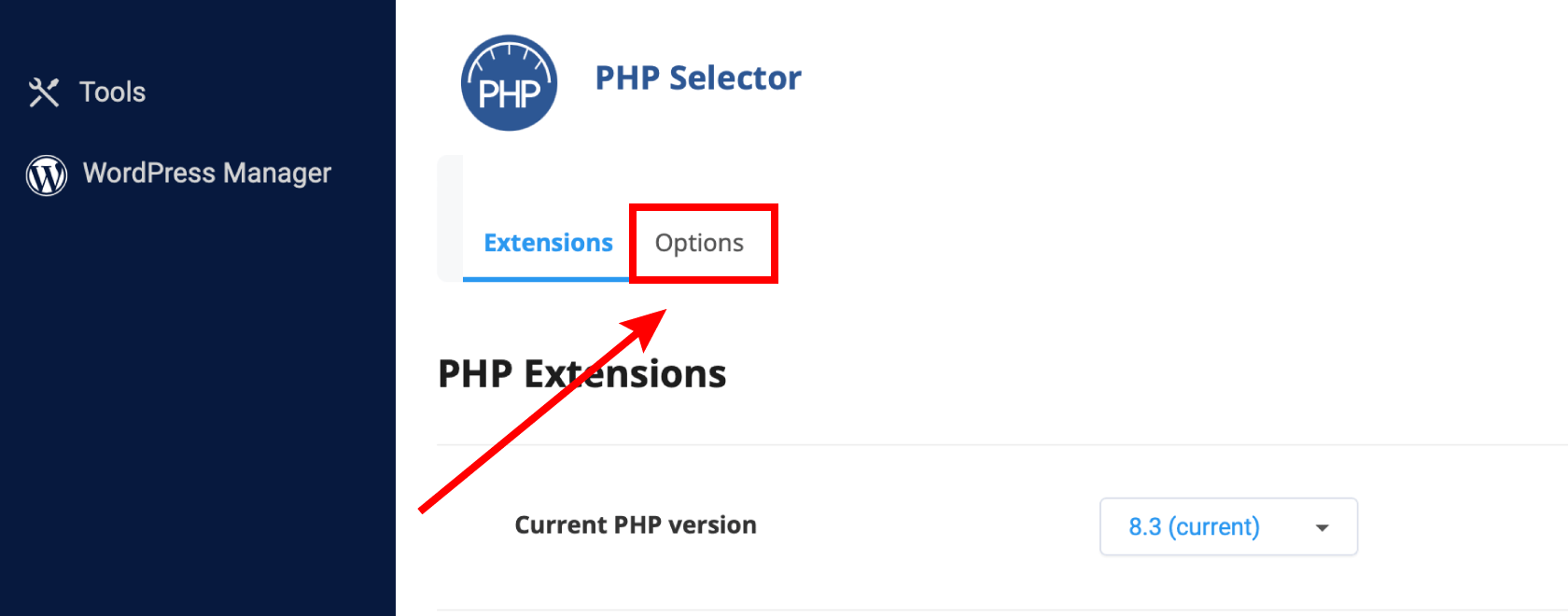
- Click Options.
- Click the max_execution_time variable, default 30, and enter your new value. E.g 300. Please note the value is measured in seconds. So 300 = 5 minutes.
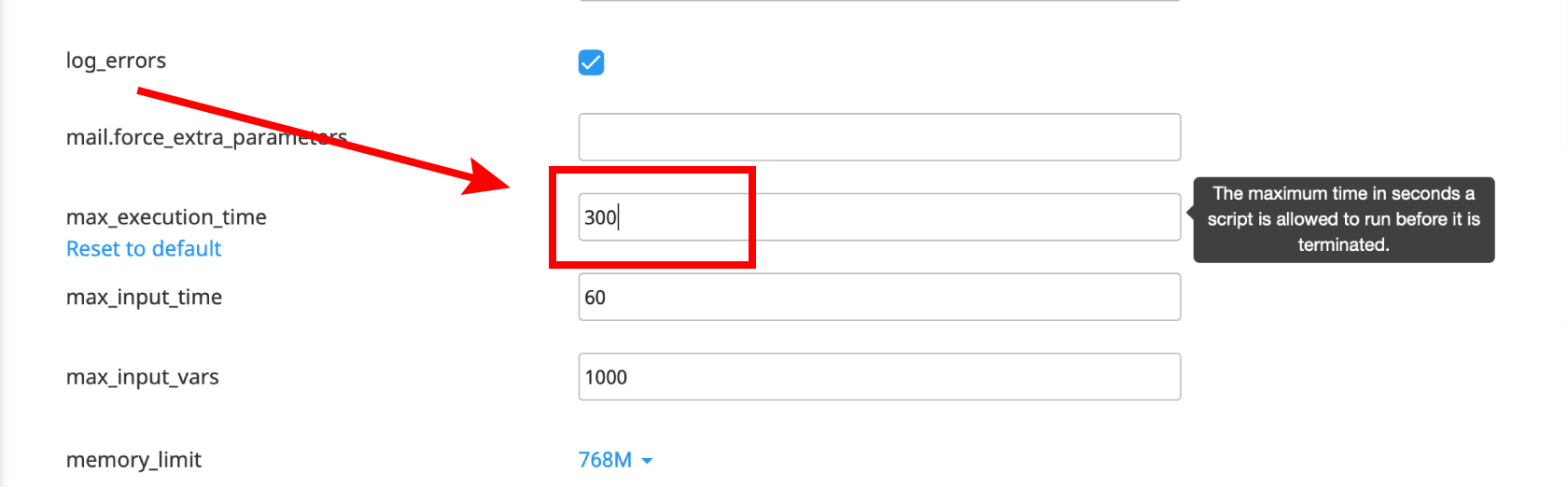
- The new value will auto-save after a few seconds or when you click another tab or option.
Please note. We do not limit max_excution_time. However if you have a Ecenica shared hosting plan we recommend setting a max_execution_time of no more than 300 seconds as long running scripts which timeout may cause excessive resource usage, affecting the normal use and availability of your website. Higher spec shared hosting plans and Ecenica Cloud Servers have greater resources available to run longer max_execution_time limits.
