This article describes how-to setup Mozilla Thunderbird to send & receive email using IMAP and your Ecenica hosting email account.
If you need to setup an email address see How-to Create an Email Address
Steps to setup your email address in Thunderbird
- Open Thunderbird on your computer.
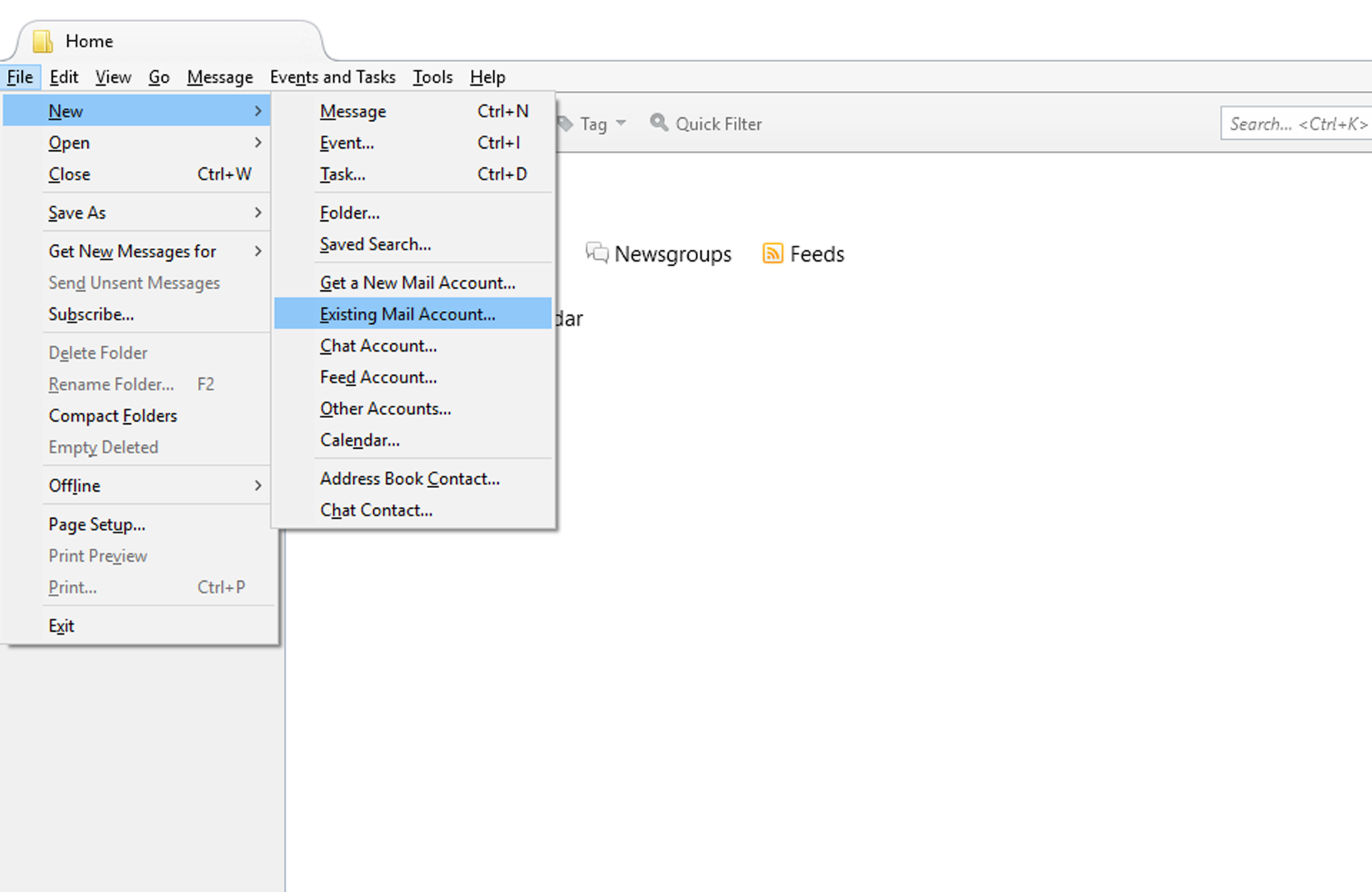
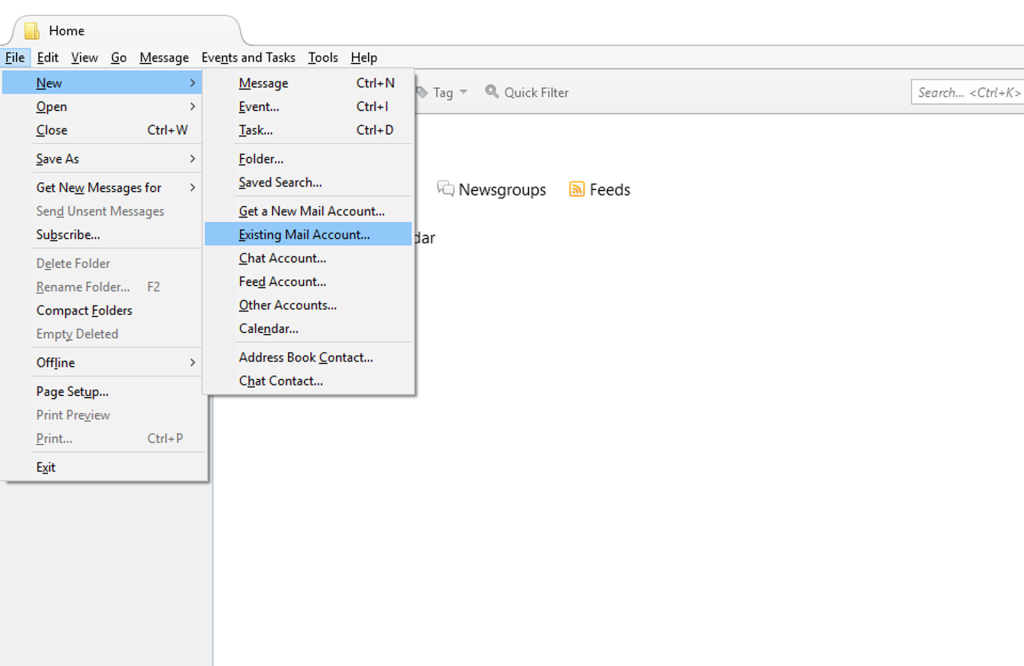
- From the File menu, click New and then Existing Mail Account.
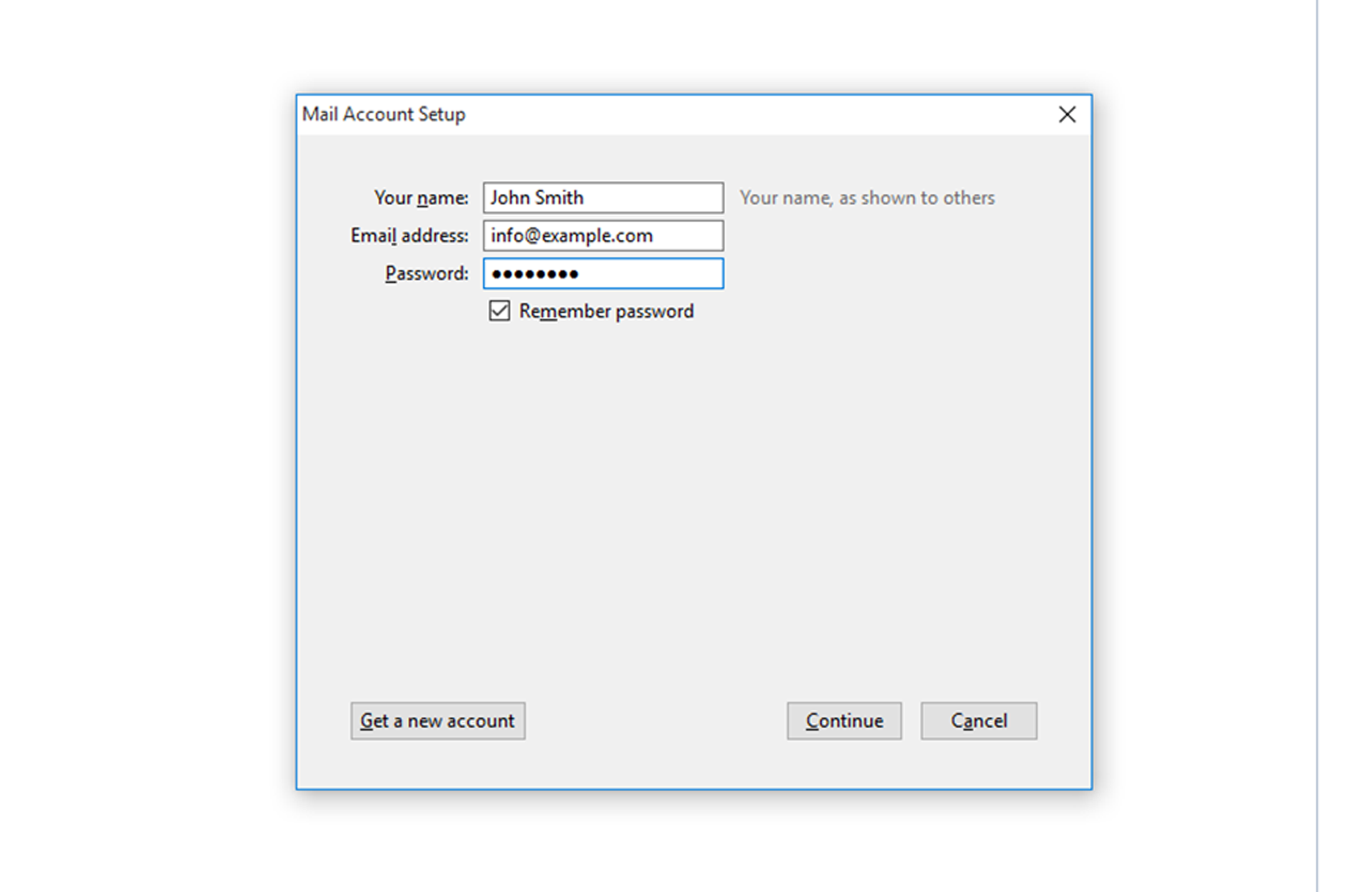
- Enter your Ecenica email account details.
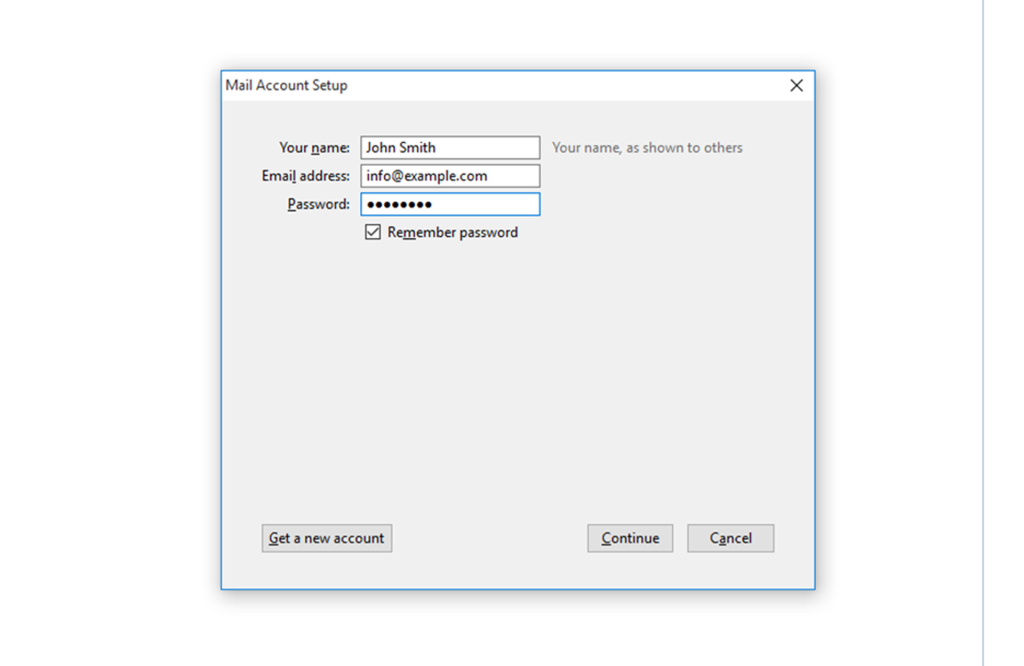
- Check Remember Password.
- Click Continue.
- Thunderbird will connect to Ecenica mail servers and automatically configure your Ecenica email account.
- Click Done.