Summary
Autoresponders automatically reply to emails sent to your email address. For example, you can add an out-of-office reply for when you’re away on holiday or vacation or add an autoresponse to let your clients know their email has been received.
Create an autoresponder
There are two ways to create an autoresponder:
If you’re the main account owner, or wish to create multiple autoresponders for all your mailboxes, follow the steps listed under Admin
If you only have your email account and email password then use the steps listed under User.
Steps for admins to create auto responders for a mailboxes in cPanel
Setup and manage Autoresponders for all your Ecenica email accounts from one control panel.
- Login to your Ecenica cPanel. See Where do I login to my control panel
- Click Autoresponders
- Click Add Autoresponder
- Fill in the form to create your Autoresponder:
Character Set: Leave as utf-8Interval: We recommend 8 hours
Email: Enter the email account you want to send auto responses from. For example, info
Domain: Choose your account domain
From: Enter the name you want to appear in the auto response email. For example, John Smith
Subject: Enter a subject for the auto response email. For example, Out of office reply
This message contains HTML: Check this box if your message contains HTML. If unsure, leave unchecked
Body: Enter the text for your auto response reply
Start: Choose if you want your autoresponder to start Immediately or Custom for a set date and time
Stop: Choose Custom to set a date & time your autoresponder will stop or Never
- Click Create/Modify to create your autoresponder.
Steps for users to setup email Autoresponders
You can setup an email Autoresponder by logging into your Ecenica Webmail with your Ecenica email address and password.
- Log in to Webmail
- Click Webmail Home.
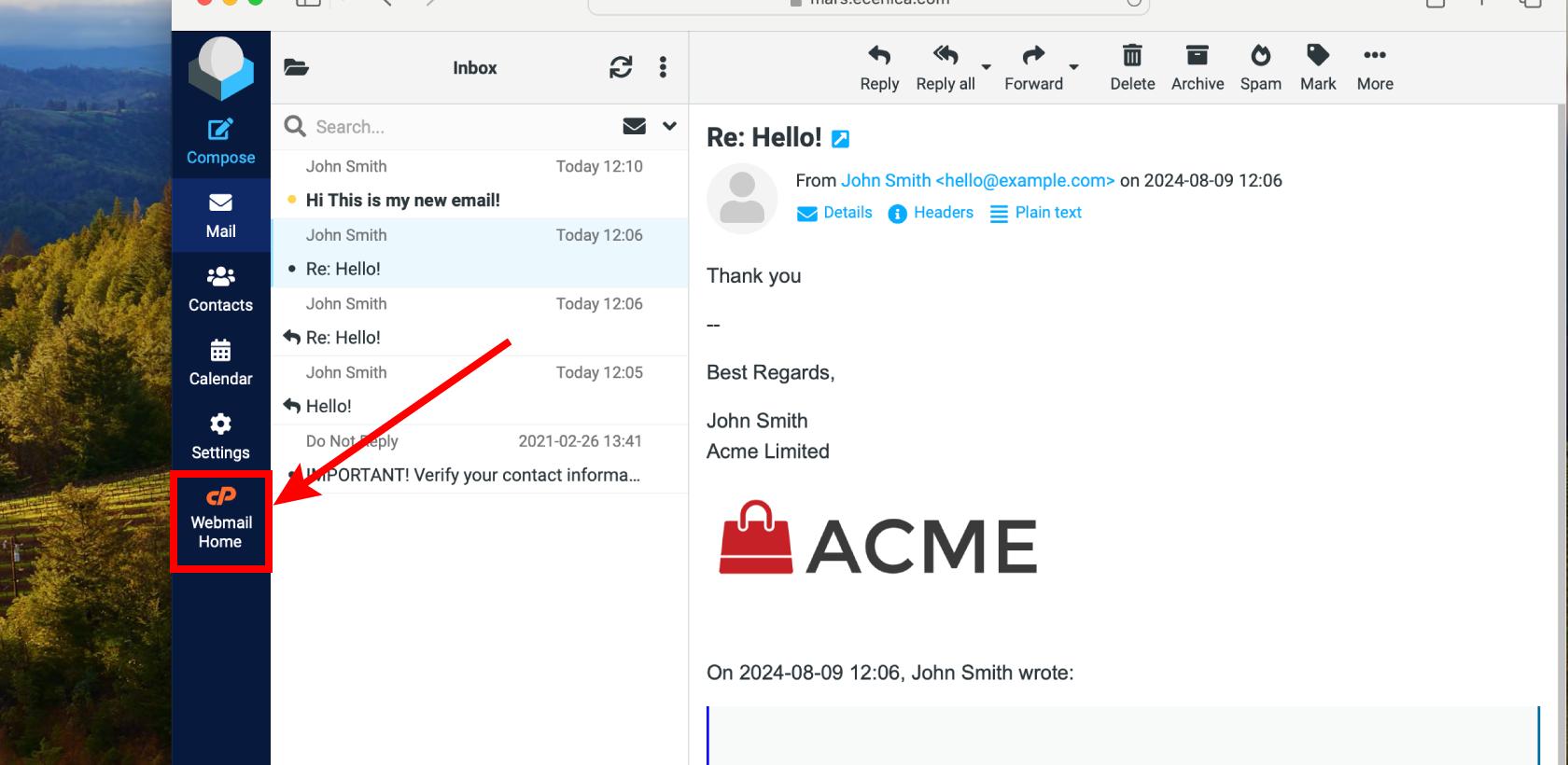
- Click Autoresponders
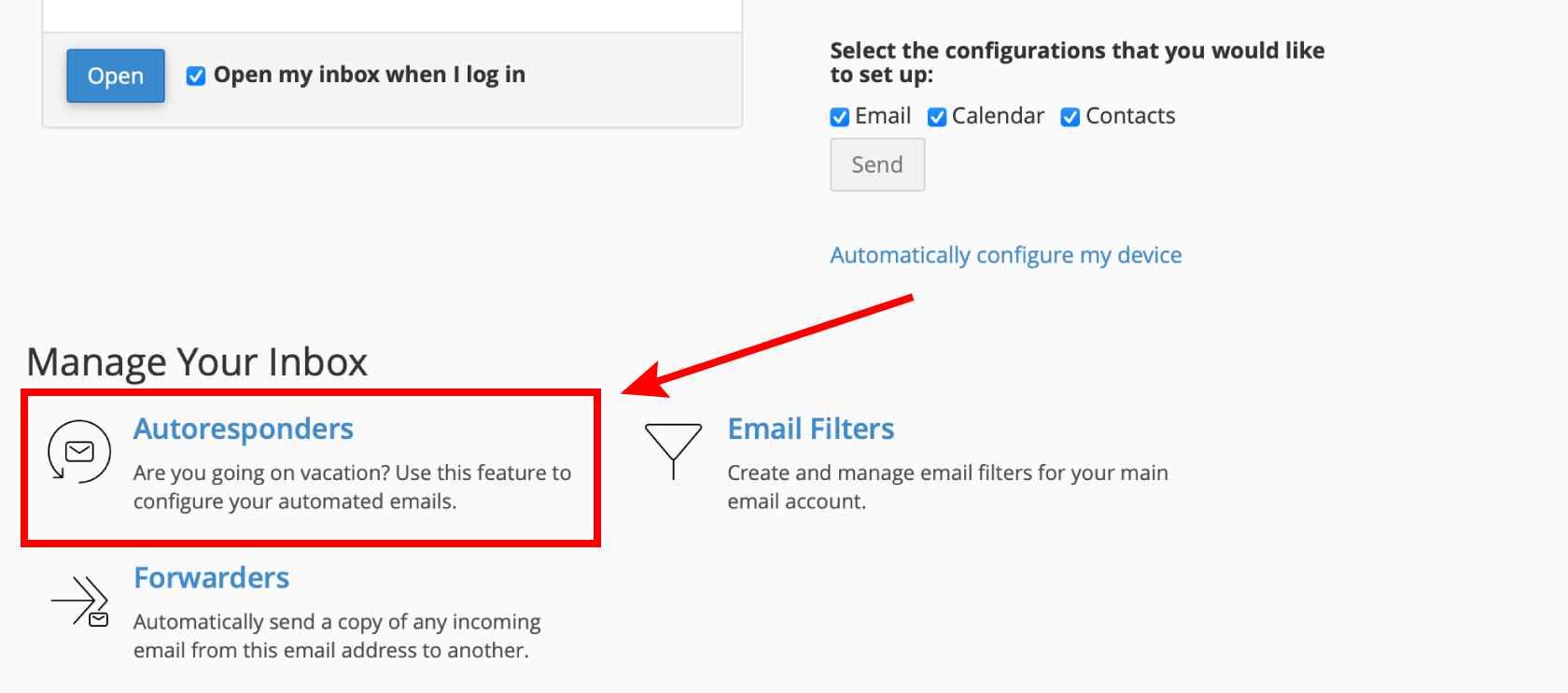
- Click Add Autoresponder
- Fill in the form to create your Autoresponder:
- Character Set: Leave as utf-8
- Interval: We recommend 8 hours
- From: Enter the name you want to appear in the auto response email. For example, John Smith
- Subject: Enter a subject for the auto response email. For example, Out of office reply
- This message contains HTML: Check this box if your message contains HTML. If unsure, leave unchecked
- Body: Enter the text for your auto response reply
- Start: Choose if you want your autoresponder to start Immediately or Custom for a set date and time
- Stop: Choose Custom to set a date & time your autoresponder will stop or Never
- Click Create.
Example Auto Responder
Click the image below to view an example autoresponder.

How to delete an auto responder?
Steps for admins to delete auto responders in cPanel:
- Login to your Ecenica cPanel. See Where do I login to my control panel
- Click Autoresponders.
- Click Delete next to the auto responder you wish to remove.
Steps for users to delete an auto responder in Webmail:
- Log in to Webmail
- Click Webmail Home.
- Click Autoresponders.
- Click Delete
How to Edit an auto responder?
Steps for admins to edit auto responders in cPanel:
- Login to your Ecenica cPanel. See Where do I login to my control panel
- Click Autoresponders.
- Click Edit next to the auto responder you wish to change.
Steps for users to delete an auto responder in Webmail:
- Log in to Webmail
- Click Webmail Home.
- Click Autoresponders
- Click Edit Autoresponder
Frequently Asked Questions for Autoresponders
What does the ‘Wait 8 hours’ interval mean?
interval sets the length of time your auto responder will wait between sending replies to the same email address. For example, if you set an interval of 8 hours and your colleague Sarah emails you at 9AM she’ll get your ‘out of office’ automatic reply immediately. Any emails Sarah sends to you after this will not get an auto response for the next 8 hours. If Sarah sends an email again at 5PM she’ll receive another ‘out of office’ reply.
This feature helps to avoid ‘bombarding’ your colleagues with automatic out-of-office replies and avoids loops between accounts which both have auto responders.
