The Team Management feature in the Ecenica Dashboard allows you to add team members to your account and assign them specific permissions. Follow the guide below to use this feature effectively.
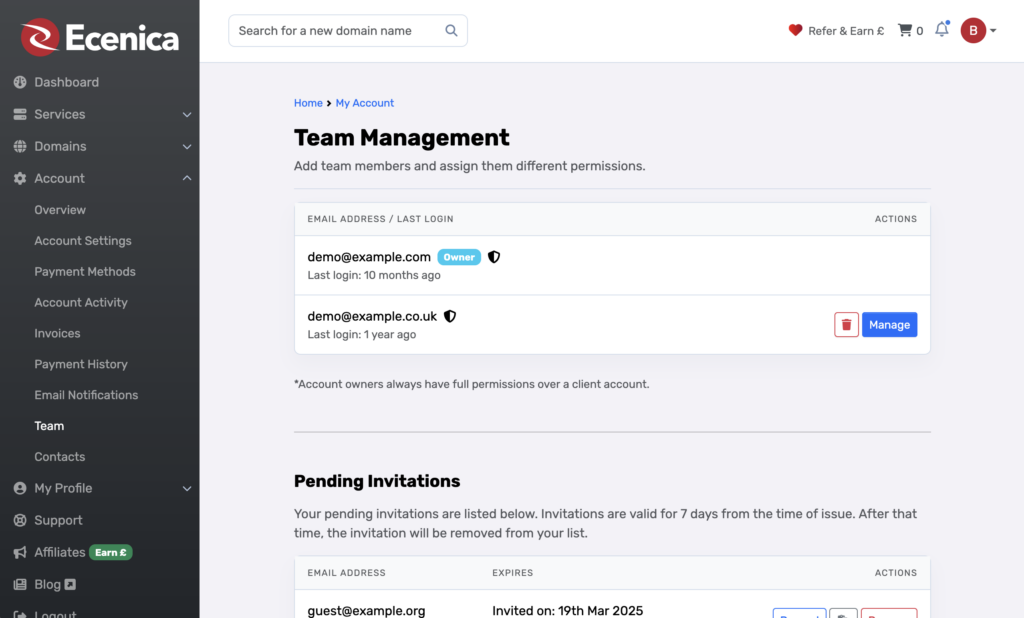
Accessing Team Management
- Log in to your Ecenica Dashboard.
- Navigate to Account > Team in the left-hand menu.
Understanding Team Roles
- Owner: The primary account holder has full permissions and cannot be removed.
- Team Members: Additional users invited to your account, with customizable access permissions.
Managing Team Members
- View Team Members: The “Team Management” section displays a list of current members, their roles, and their last login time.
- Edit Permissions: Click the actions menu next to a team member’s name to update their permissions.
- Remove a Team Member: Use the actions menu to revoke access for any non-owner team member.
Inviting a Team Member
Please note; Only the account owner can invite additional users.
- In the “Invite a Team Member” section, enter the new member’s email address.
- Select the permissions you want to grant:
- Modify Master Account Profile: Access and modify the client profile information.
- View & Manage Contacts: Access and manage contacts.
- View Products & Services: View access to products, services, and addons.
- View & Modify Product Passwords: Allow password resets and other actions.
- View Domains: View access to domain registrations.
- Manage Domain Settings: Allow domain management (e.g., nameservers, WHOIS, and transfers).
- View & Pay Invoices: View and payment access to invoices.
- View & Open Support Tickets: Access to open, respond, and manage support tickets.
- View & Manage Affiliate Account: Access to view and request withdrawals.
- View Emails: Access to view account email history.
- Place New Orders/Upgrades/Cancellations: Allow placing of new orders.
- Click Send Invite.
The invitee will receive an email with instructions on how to join your account. If they don’t have an existing Ecenica account, they’ll be prompted to create one.
Managing Pending Invitations
Once you’ve sent an invitation, it will appear in the Pending Invitations section. Invitations are valid for 7 days from the time of issue. Here’s how to manage them:
- Resend an Invitation
- Locate the pending invitation in the list.
- Click the Resend button to send the invitation email again. This is useful if the invitee didn’t receive the initial email.
- Copy Invitation Link
- Locate the pending invitation in the list.
- Click the Copy Link button (located between Resend and Remove) to copy the invitation link to your clipboard. This allows you to share the link directly with the invitee.
- Remove an Invitation
- Locate the pending invitation in the list.
- Click the Remove button to cancel the invitation. This is useful if you no longer want to add the invitee to your team.
Pending invitations will automatically expire after 7 days if no action is taken, and they will be removed from the list.
Team Quota
The number of team members you can add depends on your account status and active services:
- All Accounts: Maximum of 2 users.
- Domain Discount Club Members: Maximum of 5 users.
- Premium Packages: Maximum of 10 users.
Your current quota is displayed in the “Team Quota” section.
FAQs
Q: What happens if the invitee already has an account?
They can use their existing login credentials to access your account with the assigned permissions.
Q: Can I change a team member’s permissions after inviting them?
Yes, you can update their permissions at any time from the “Team Management” section.
Q: What if I’ve reached my team quota?
Upgrade your services or contact Ecenica Support for additional capacity.
If you have further questions or need assistance, feel free to reach out to our support team.
