Email Filters in cPanel are an easy and efficient way to manage your emails. In this article we’ll outline how you can access and set up email filters in cPanel.
Accessing Email Filters
There are two ways to access email filters. Through Webmail as the email account user or through cPanel as the account admin.
Accessing Email Filters via Webmail
- Log in to Webmail. Access https://example.com/webmail, replacing example.com with your domain name.
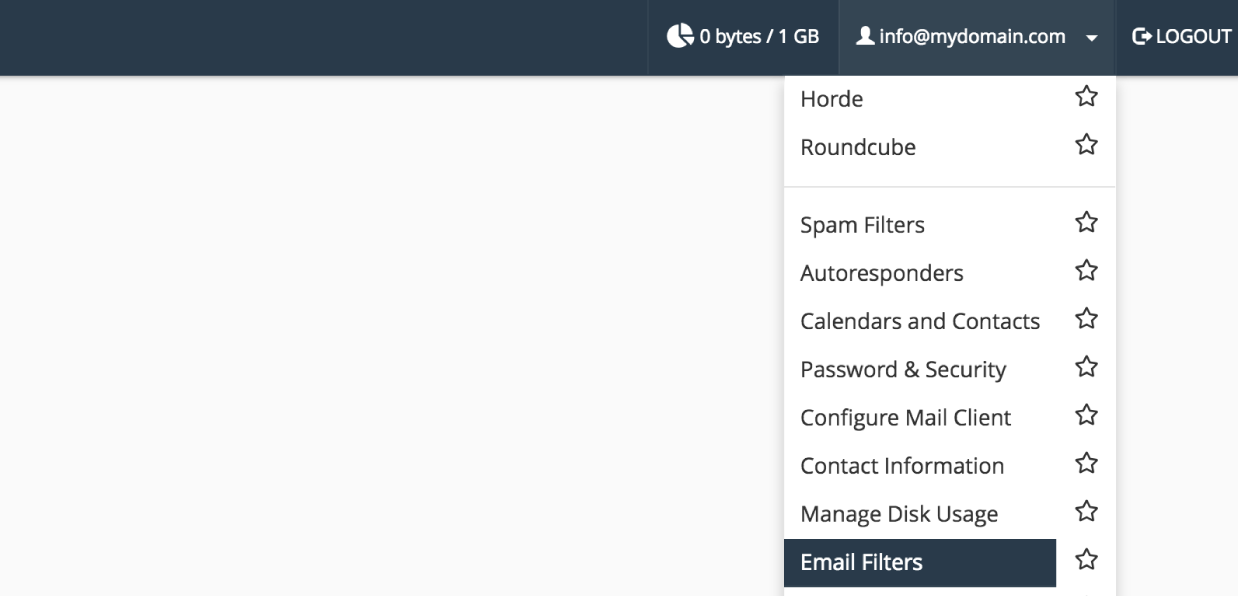
- Click the username dropdown-menu at the top right then click Email Filters.
Accessing Email Filters via cPanel
- Log in to cPanel.
- For help accessing your cPanel see Where do I log in to my hosting control panel.
- Click Email Filters under the Email section.
- Click Manage Filters next to the email account you wish to edit.
Create an Email Filter
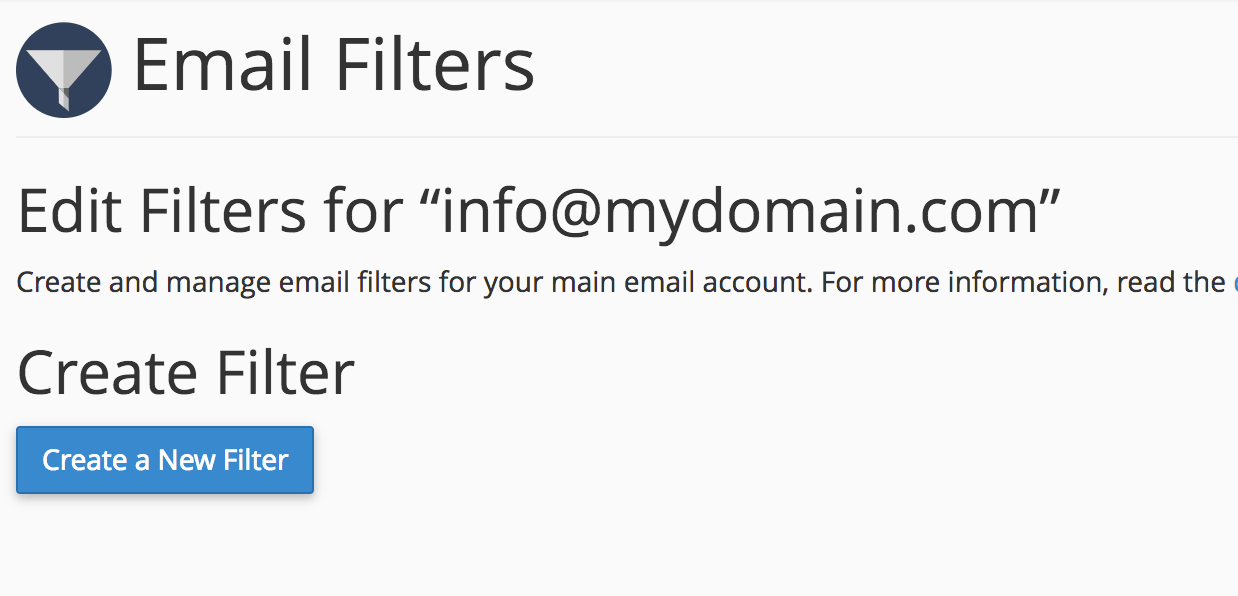
- Access the email filter page as above. Click Create a New Filter
- Enter a Filter Name
- Configure your filter’s rules and actions. For detailed information on how to configure your filter please see cPanel’s How to Configure Mail Filters article.
- Click Create to add your email filter.
Edit a Email filter
- Click Edit next to the filter name.
- Change your filter settings.
- Click Save
Delete a Email filter
- Click Delete next to the filter name.
- Click Delete Filter
Example Email Filters
We’ve included some examples of filter rules below. Replace info@example.com with the email address you wish to filter.
Whitelist an email address
Deliver email from an email address to a folder in your mailbox
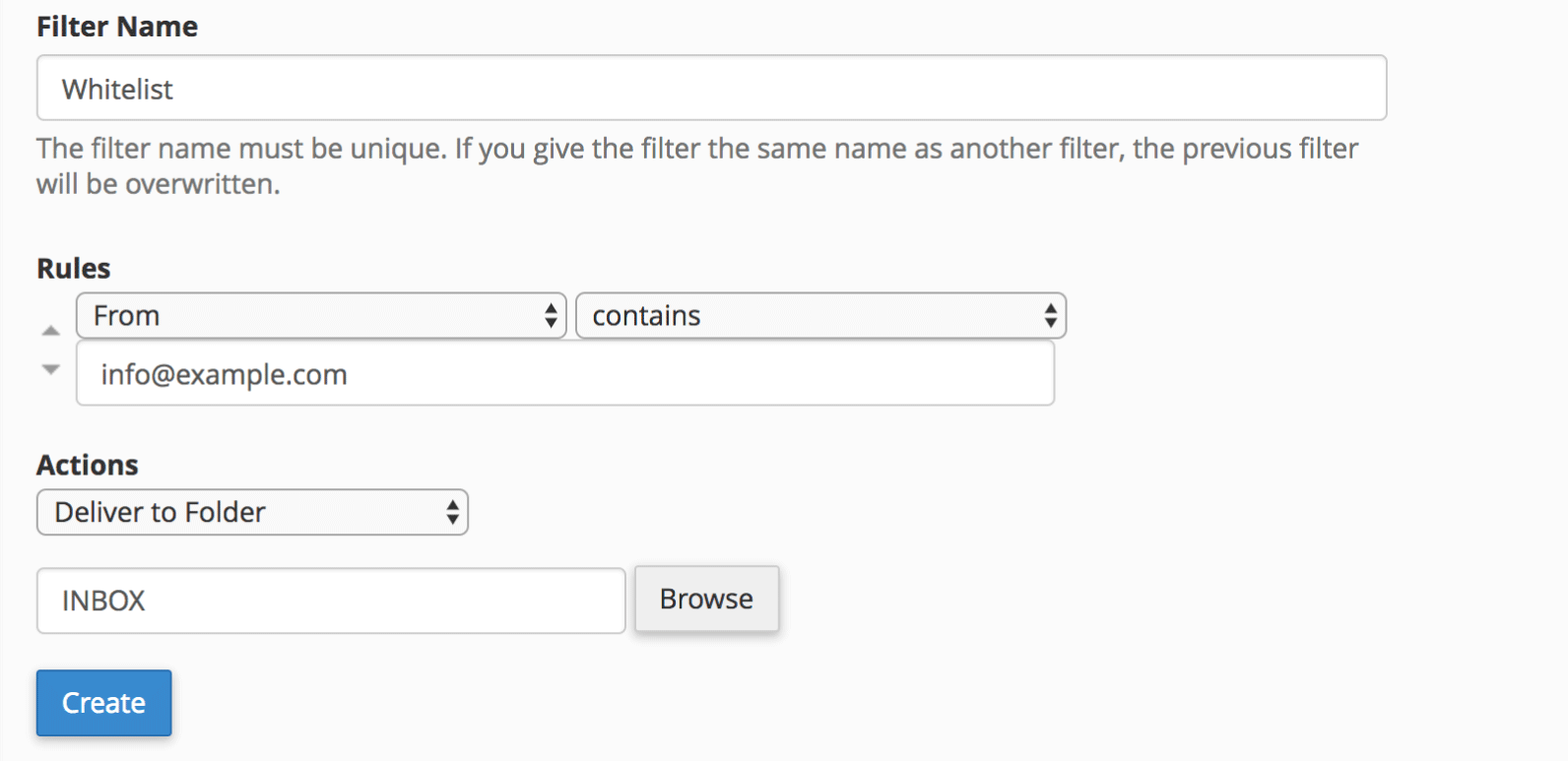
Whitelist an email address
Name: Whitelist Email
Rules: From – contains – info@example.com
Actions: Deliver to Folder – INBOX
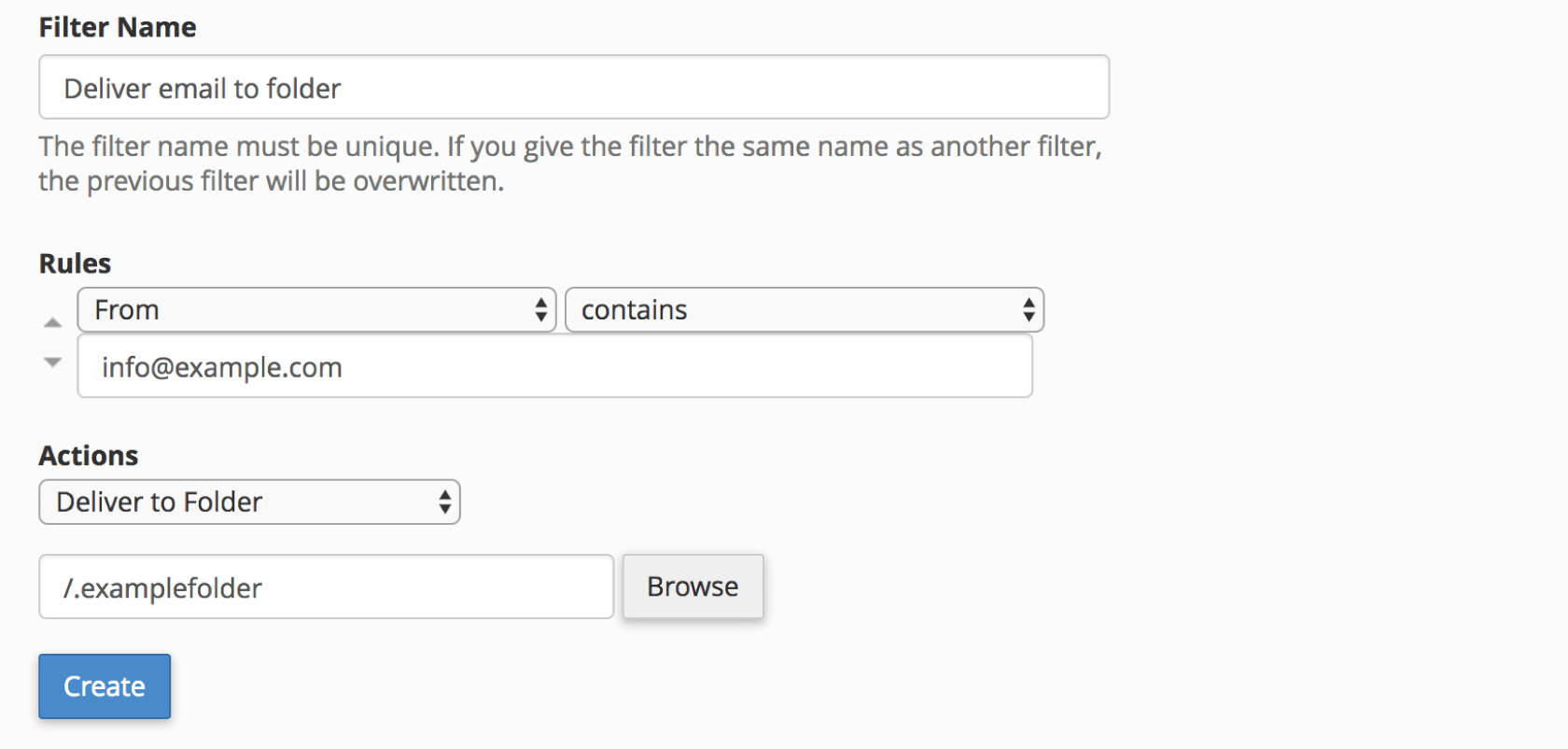
Deliver email from an email address to a folder in your mailbox
Name: Deliver email to folder
Rules: From – contains – info@example.com
Actions: Deliver to Folder – /.examplefolder
Tip: Use the Browse button to select an existing folder