Install WordPress on on your Ecenica web hosting plan using our WordPress 1-click Installer. Follow the steps in this article to quickly and easily install a new copy of the latest WordPress in just a few clicks.
Steps to install WordPress
- Log in to your Ecenica Dashboard
- Click Manage next your Ecenica hosting service.
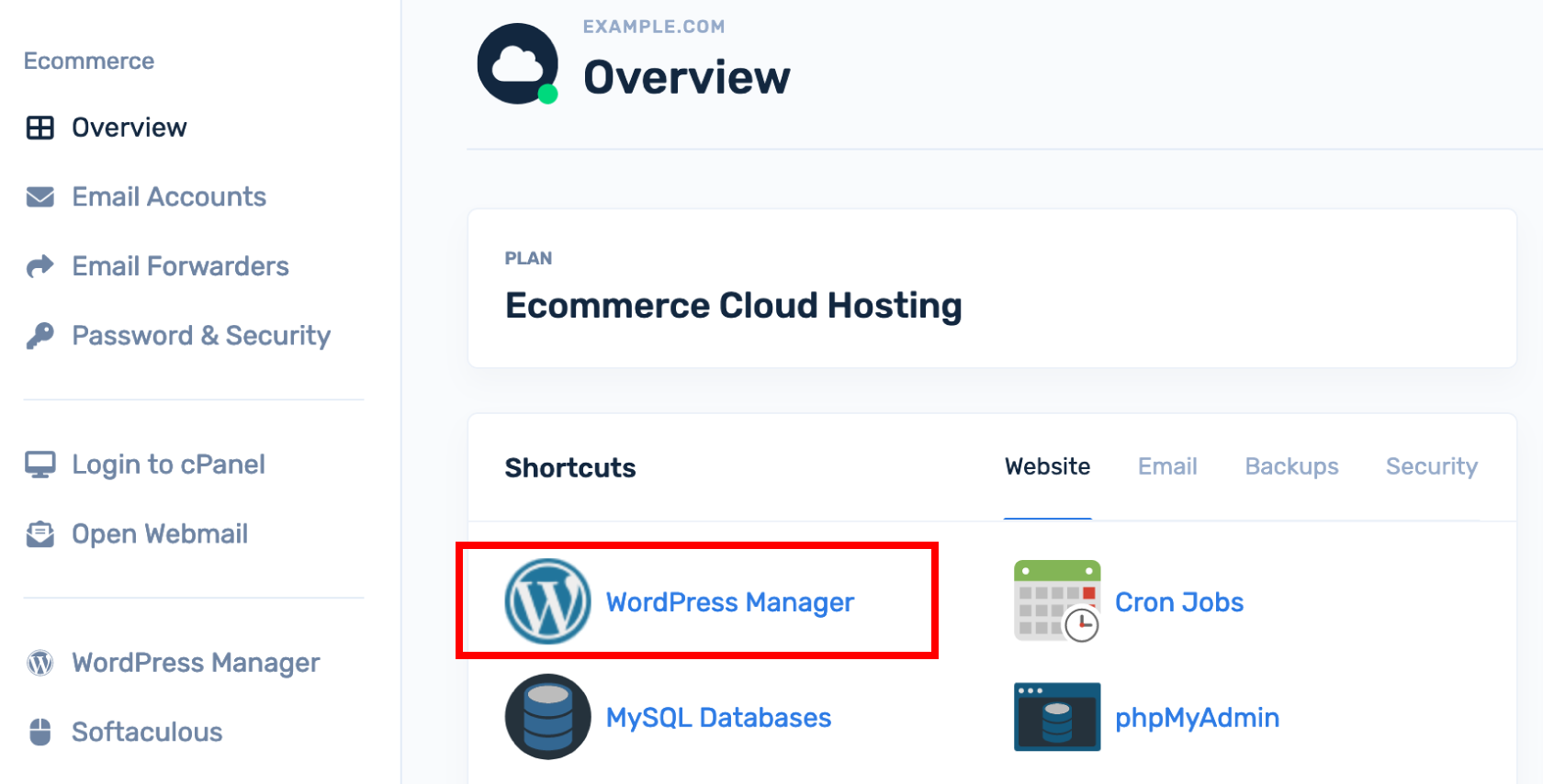
- Click WordPress Manager .
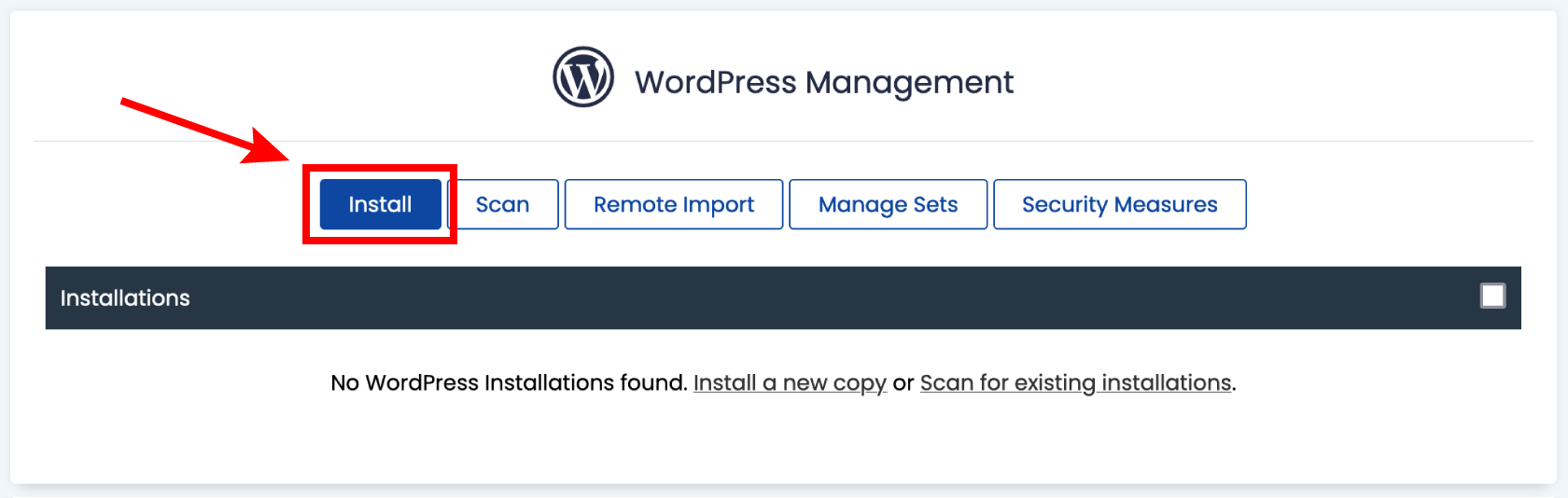
- Click Install
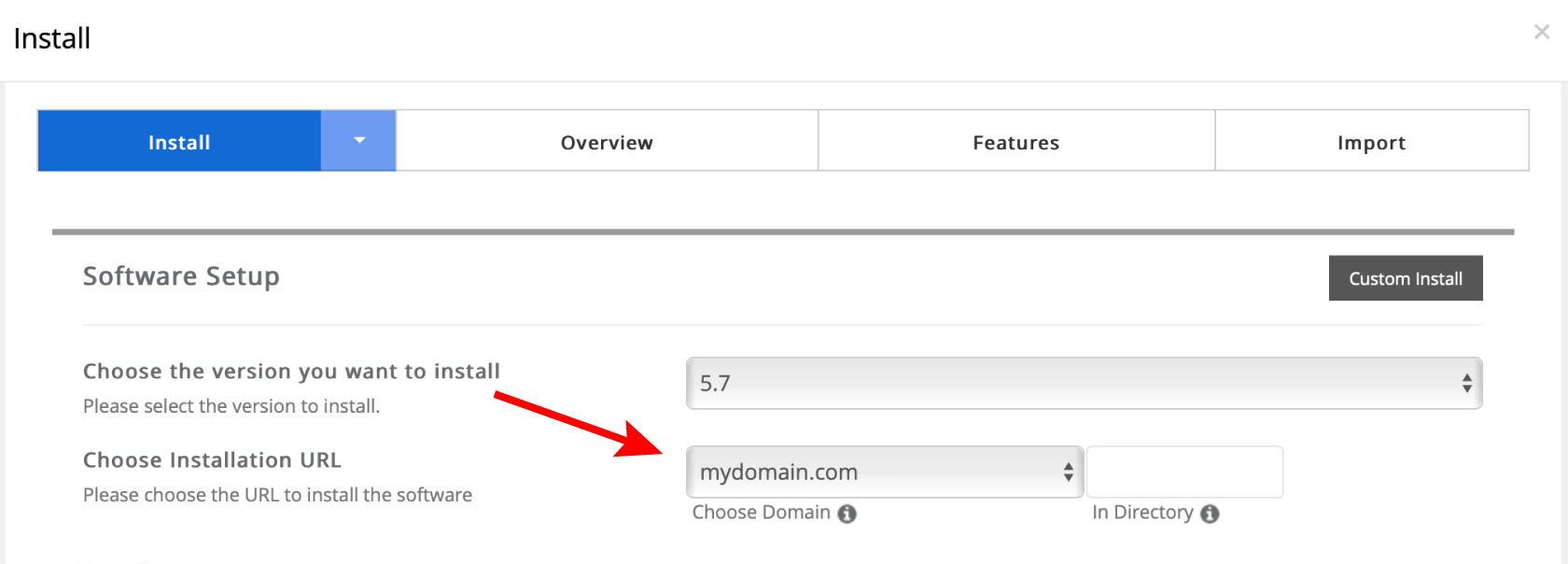
- Select the domain you want to install WordPress on from the drop-down list.
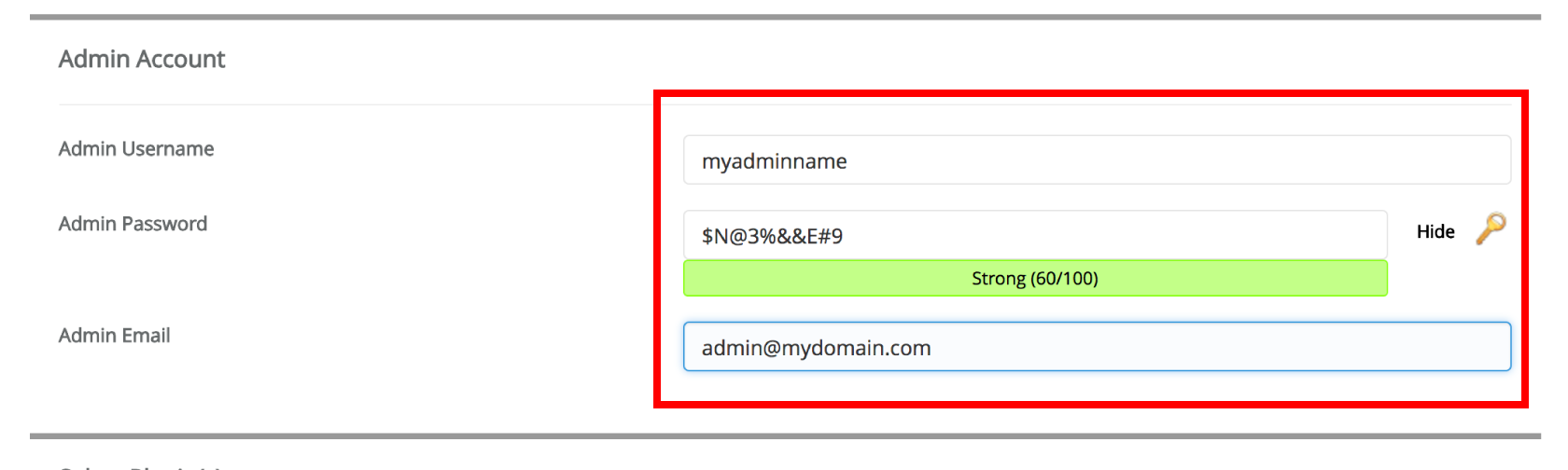
- Enter the Admin username, password and Admin Email you want to use. These will become your login details for your WordPress site.
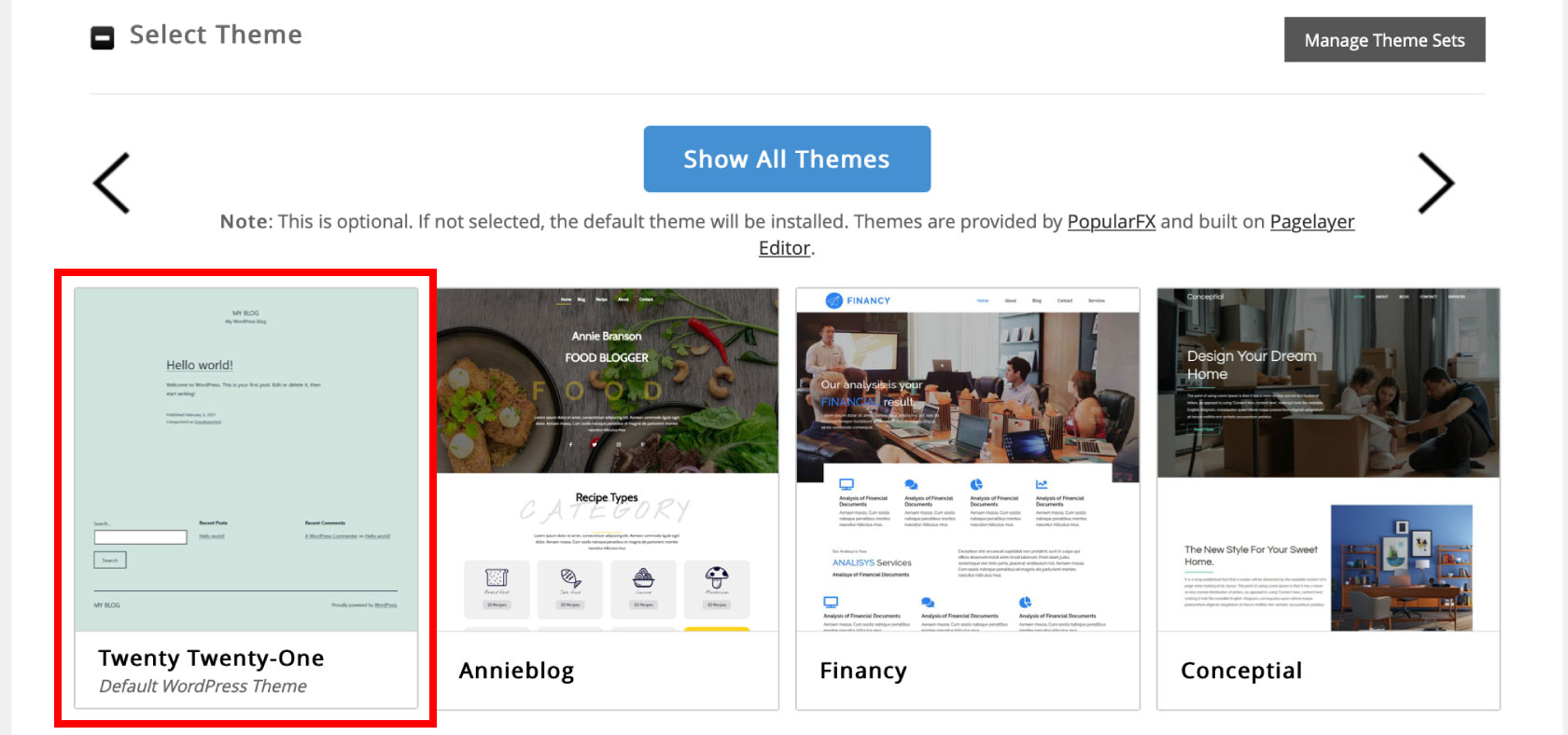
- Select a theme. This is optional and you can change themes at any time. Click the Select button to choose a theme or leave unselected to use the default WordPress theme.
- Click Install at the bottom of the page to install WordPress.
Our installer will automatically setup WordPress for you on your Ecenica web hosting and notify you once your new WordPress install has been completed.
