Addon domains allow you to host multiple websites on a single Ecenica hosting account. Each addon domain has its own website files and email addresses, but shares your account’s resources.
What Are Addon Domains?
An addon domain is an additional domain hosted on your existing Ecenica web hosting account.
Example:
- Main domain: mybusiness.com (in public_html)
- Addon domain: myproject.com (in myproject.com/)
Both appear as separate websites to visitors but share your single plan’s hosting resources.
Before You Add an Addon Domain
Check Your Plan Supports Addon Domains
- Log in to Ecenica Dashboard
- Go to Services > My Services
- Click your hosting service
- Check the Addon Domains allowance
Not all plans include addon domains. You may need to upgrade.
Important: Shared Resources
All addon domains share your hosting account’s:
- Storage space – If one site fills the disk, all sites stop working
- Bandwidth and CPU – High traffic on one site affects all sites
- Security – If one site is hacked, all sites may be compromised
- Email quota – All domain emails share the same storage limit
When NOT to Use Addon Domains
❌ Unrelated business websites (security risk)
❌ High-traffic sites (performance issues)
❌ Client websites (keep on separate accounts)
❌ E-commerce sites (need dedicated resources)
Better option: Use separate hosting accounts for isolation and better performance.
How to Create an Addon Domain
Prerequisites
- Domain is registered (with Ecenica or elsewhere)
- Your hosting plan supports addon domains
Steps
- Log in to Ecenica Dashboard.
- Go to Services > My Services.
- Click your hosting service.
- Click Domains
- Click Create A New Domain
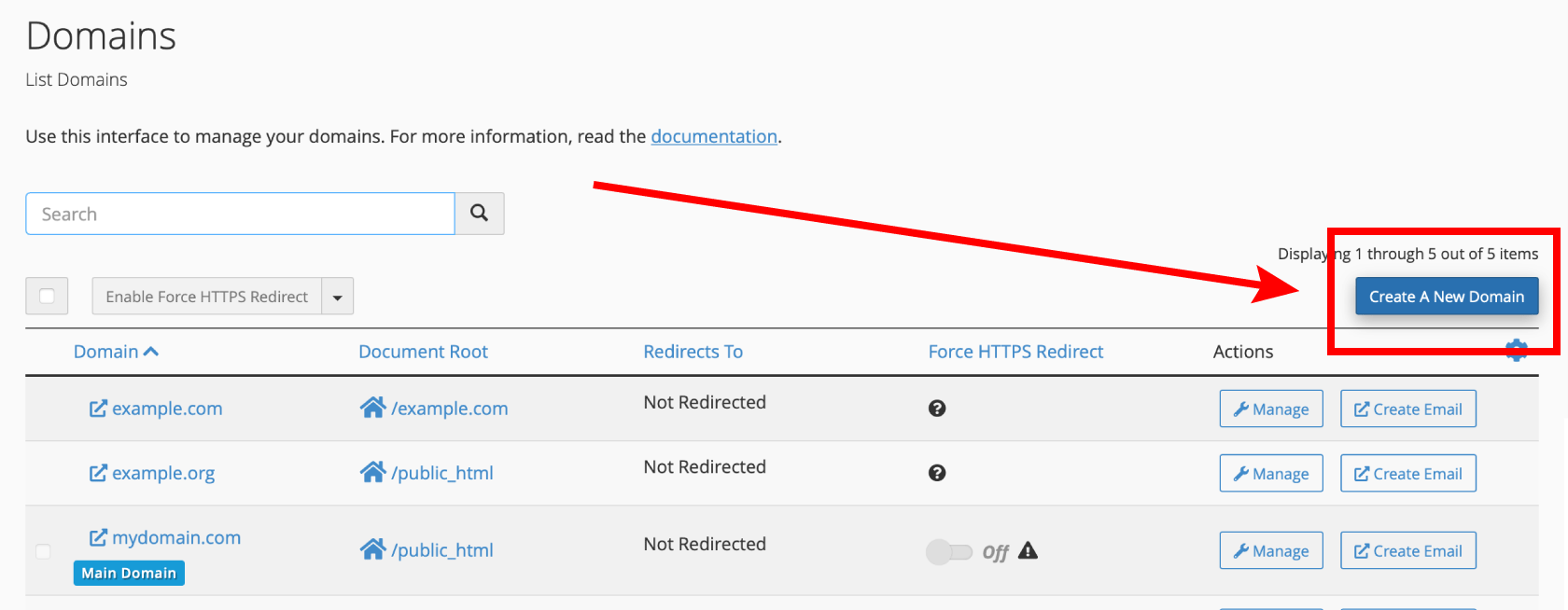
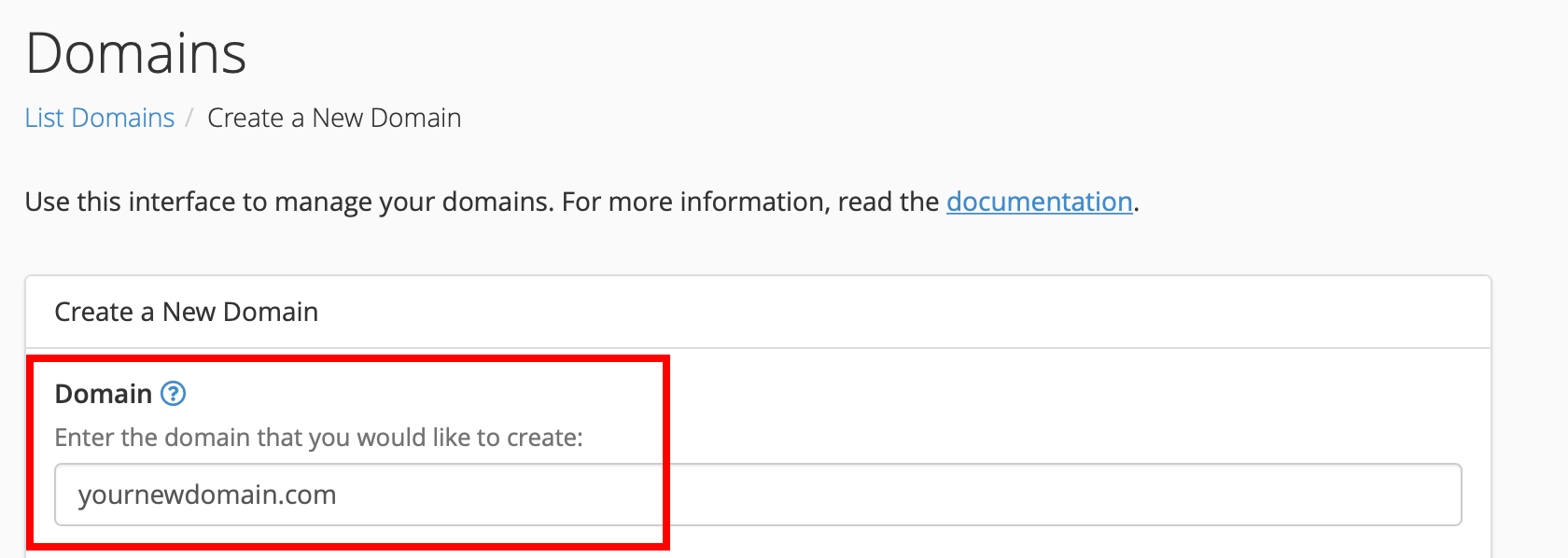
- Enter your domain name (e.g., yournewdomain.com)
- Uncheck “Share document root” – This gives your addon domain its own folder

- Click Submit
Your addon domain is now created with its own folder at ‘yourdomain.com’.
Uploading Files to Your Addon Domain
- In cPanel, open File Manager
- Navigate to your addon domain folder. E.g ‘yourdomain.com’
- Click Upload
- Upload your website files (ensure you have index.html or index.php)
To install WordPress: Use WordPress Manager in Ecenica Dashboard and select your addon domain from the dropdown.
Creating Email Addresses
- In Ecenica Dashboard, click Email Accounts
- Click Create
- Select your addon domain from the Domain dropdown
- Enter email details and click Create
See: How to create email addresses
Connecting Your Domain to Your Hosting
If your domain is registered elsewhere or uses third-party nameservers:
Option 1: Point nameservers (recommended)
Change your domain’s nameservers to:
- ns1.ecenica.com
- ns2.ecenica.com
Option 2: Update DNS records
At your current DNS provider, update:
- A Record – Point to your Ecenica hosting IP
- MX Records – Point to Ecenica mail servers (for email)
- TXT Records – Add SPF, DKIM and DMARC records for email deliverability.
See: How to point my domain to Ecenica
DNS changes can take up to 24-48 hours to propagate.
Deleting an Addon Domain
Important: Deleting removes the domain from cPanel but does NOT delete files, databases, or your domain registration.
- Log in to Ecenica Dashboard.
- Go to Services > My Services.
- Click your hosting service.
- Click Domains
- Click Manage next to the domain you want to remove
- Click Remove Domain
- Click Yes, Remove This Domain
To fully remove:
- Delete the addon domain folder in File Manager
- Delete associated databases in MySQL Databases
Troubleshooting
“A DNS entry for the domain already exists”
Solution: When creating the addon domain, change the auto-filled Subdomain field to something unique (e.g., change addon.example.com to addon1.example.com).
Alternatively, delete the conflicting DNS entry in Zone Editor.
Addon Domain Shows Main Domain’s Content
Cause: “Share document root” was left checked during setup.
Solution: Delete and recreate the addon domain, ensuring you uncheck “Share document root”.
Domain Not Loading
Common causes:
- DNS not propagated – Wait 24-48 hours
- No index file – Upload
index.htmlorindex.phpto the addon domain folder - Wrong folder – Ensure files are in
public_html/addondomain.com/, notpublic_html/ - No SSL – Go to SSL/TLS Status in cPanel and run AutoSSL
Email Not Working
Solution: If using external nameservers, configure MX records to point to Ecenica mail servers. If using Ecenica nameservers, MX records are set automatically.
Frequently Asked Questions
How many addon domains can I have?
Depends on your Ecenica hosting plan. Check your plan details in the Ecenica Dashboard.
Is there an extra cost?
No, addon domains are included in your plan (up to your limit). Domain registration is separate.
Can I install WordPress on an addon domain?
Yes. Use WordPress Manager or Softaculous and select your addon domain during installation.
Do addon domains affect my main domain’s performance?
Yes, potentially. They share resources, so high traffic on one domain can slow down others.
Can I use different PHP versions per domain?
Yes, use MultiPHP Manager in cPanel to set different PHP versions for each domain.
What happens if I cancel hosting?
All addon domains go offline. Your domain registrations remain active but won’t display websites until pointed to new hosting.
Need Help?
Contact Ecenica support if you need assistance with addon domains or want to discuss the best hosting solution for multiple websites.
