If you’re looking to supercharge your WordPress site’s performance, the LiteSpeed Cache plugin is one of the most powerful tools available. However, with its vast array of options, configuring it for optimal speed and efficiency can be overwhelming, especially if you’re not sure which settings truly matter.
In this post, we’ll walk you through the best LiteSpeed Cache settings for most WordPress sites, focusing on speed, compatibility, and resource optimisation. Whether you’re running a blog, an eCommerce store, or a portfolio site, these tips will help you strike the right balance between performance and stability.
We’re using the Advanced LiteSpeed Configuration Preset as the starting point for our optimisation.
LiteSpeed Setting Recommendations by Tab
The LiteSpeed cache plugin’s settings are organized into several tabs, each addressing different aspects of site optimisation. Below, we detail each setting, its function, and the recommended value, supported by examples and considerations.
Table of Contents
- General Settings
- Page Cache Settings
- CDN
- Image Optimisation Settings
- Page Optimisation Settings
- Database
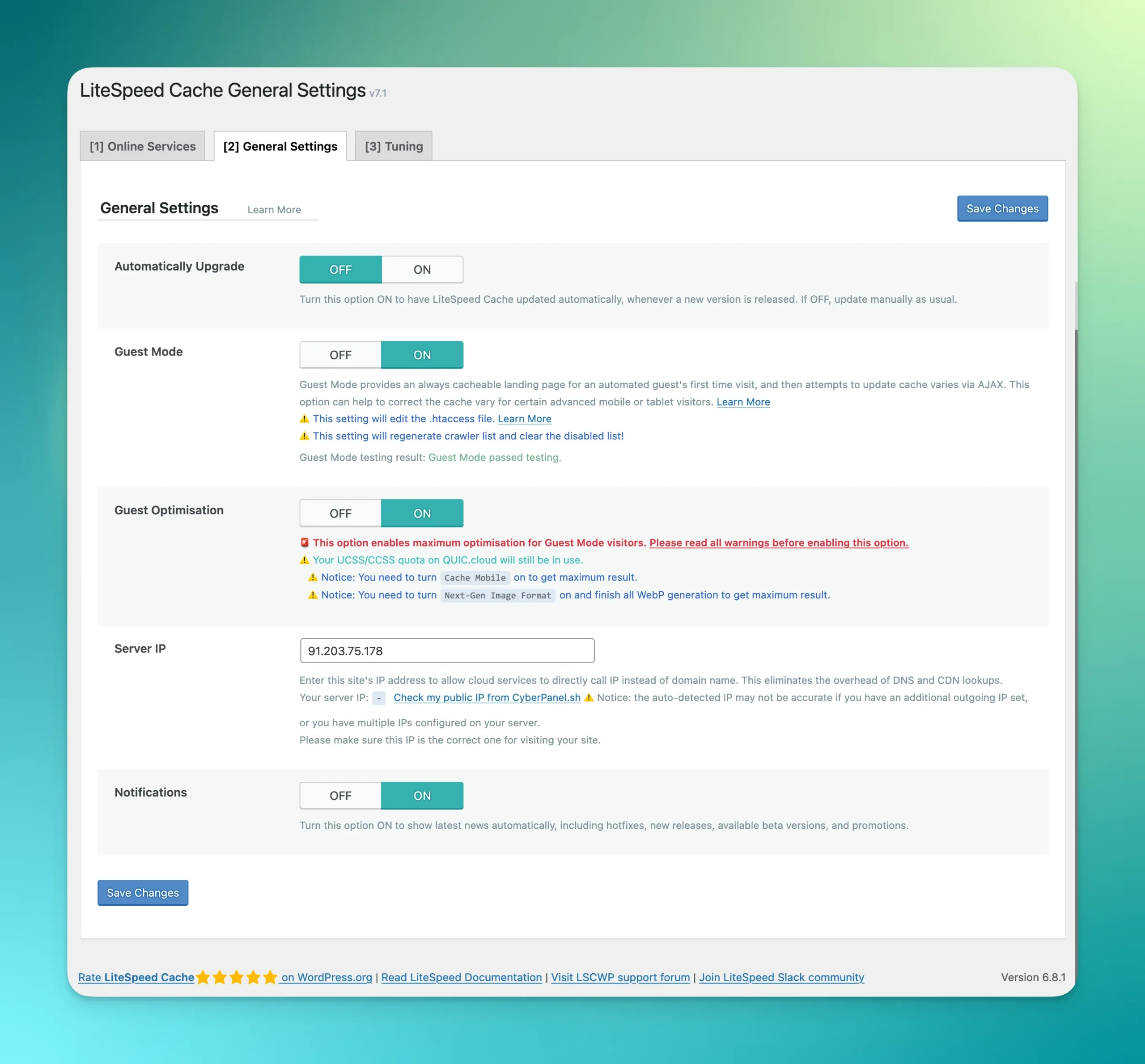
General Settings
Automatically Upgrade
The plugin will automatically update on with bug fixes, security fixes and new features. Off lets you control upgrades.
Default: Off
Recommend: Off – Allow WordPress Manager to control updates.
Guest Mode
Guest mode serves an always cacheable landing page for an automated guest’s first time visit. Then attempts to update the chase page via AJAX calls. Significantly helps first time load speed and page scores in testing.
Guest mode can increase your resource usage. Check for any issues by loading your page in incognito mode.
Can improve your page speed score but mask ‘real-world’ user speed issues.
Default: Off
Recommend: On – But after testing and solving issues: E.g. JS, CSS defer etc.
Guest Optimisation
If Guest Mode is On. Also enable Guest Optimisation.
Default: Off
Recommend: On – If Guest Mode is On.
Server IP
Enter your Ecenica Server IP. Found in My Services. Or click Check my public IP to auto detect.
Notifications
News and info about updates to Litespeed.
Default: On
Recommend: On
Page Cache Settings
Cache tab
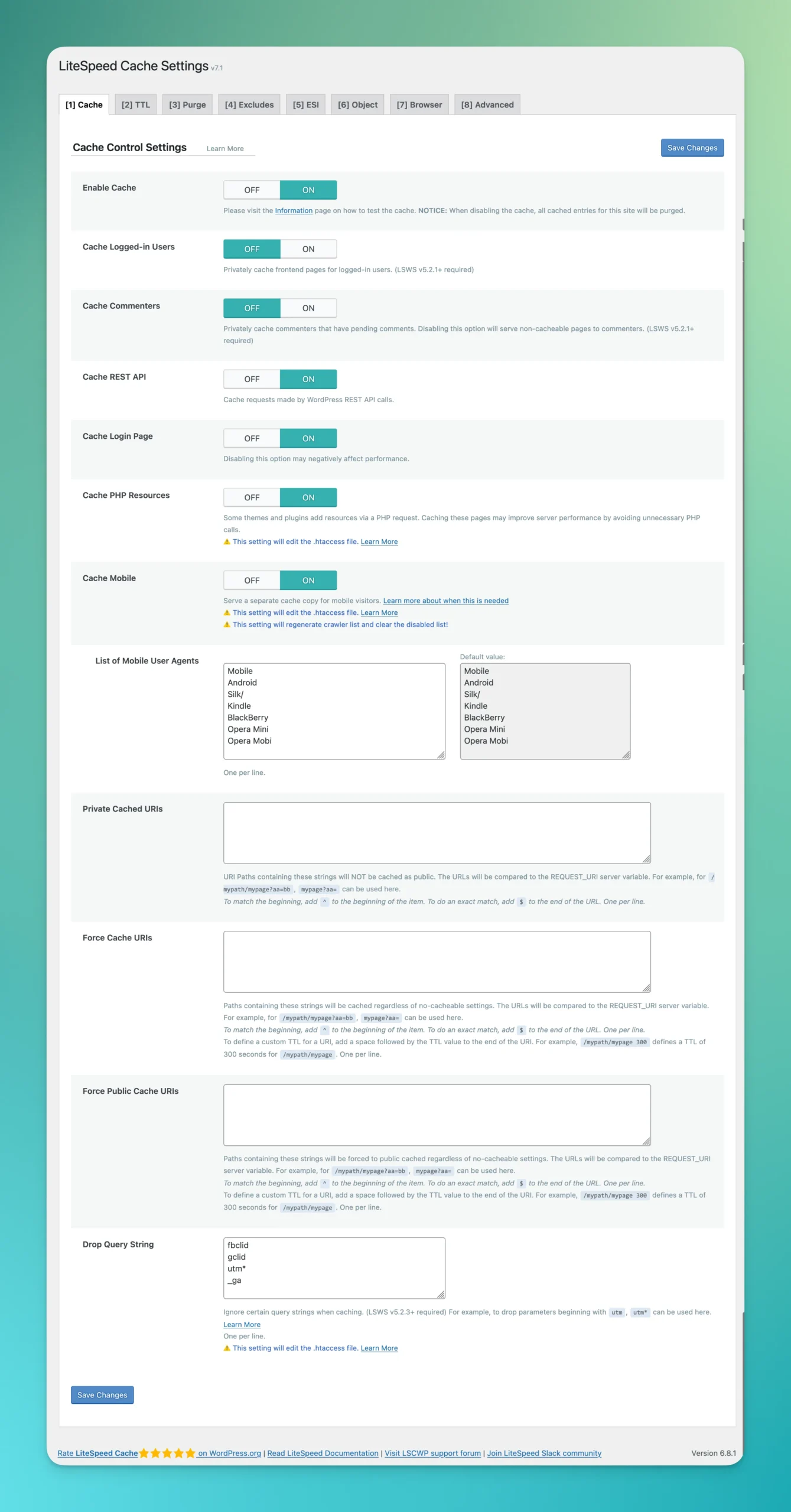
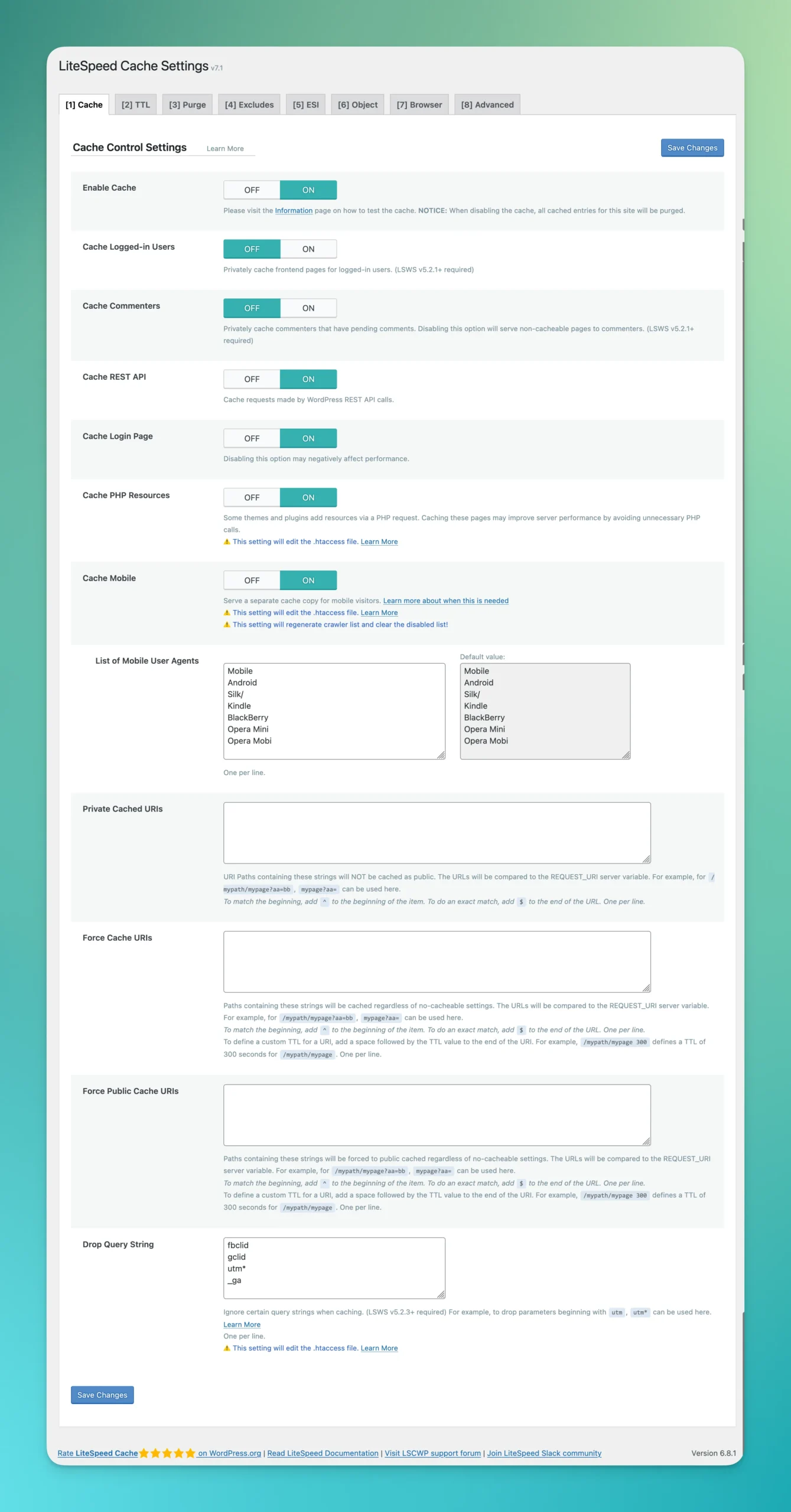
The Cache tab is central to the plugin’s functionality, managing how pages and resources are cached. Here’s a detailed breakdown:
Enable Cache
Activates caching
Default: On
Recommend: On
Cache Logged-in Users
Creates a private cache for logged in users. Only useful if you run a membership site. Consumes additional resources.
Default: On
Recommend: Off – Unless you’re running a membership site.
Cache Commenters
Creates a private cache for commenters who have pending comments. Consumes resources if your blog gets a lot of comments.
Default: On
Recommend: Off
Cache REST API
Caches requests made through WordPress API calls. Lots of plugins, themes and the WordPress Block Editor make API calls.
Default: On
Recommend: On
Cache Login Page
Caches your WordPress login page as long as you’re using the default page paths. Having this option on is recommended as it will save resources.
Default: On
Recommend: On
Cache PHP Resources
Caches PHP calls for static resources such as CSS and JS loaded by your themes and plugins.
Default: On
Recommend: On
Cache Mobile
Required when Guest Mode, Guest Optimisation are enabled. Serves different content for mobile vs desktop users. Uses additional resources.
Default: Off
Recommend: On
List of Mobile User Agents.
Appears when Cache Mobile enabled. Allows you to enter additional mobile user agents to serve mobile caches. Default settings are usually enough.
Private Cached URIs
URI paths which will be privately cached for each visitor instead of using the public cache. Useful if there are specific pages with user content on your site.
Force Cache URIs
Paths entered here will be forced cached regardless of ‘no-cache ‘settings. Useful when testing why a page may be not cached. Leave empty in most cases.
Force Public Cache URIs
Similar to ‘Force Cache URIs’. Paths entered here will be forced publicly cached regardless of ‘no-cache’ settings. Leave empty in most cases.
Drop Query String
Ignores listed query strings in URLs when deciding to cache a page. E.g many referrers such as Google Adwords, Facebook and Bing Ads will add tracking strings to URLs and pages visitors land on will not be cached unless the query string is entered here. Default settings ignore Facebook, Google, and Bing. Add as required based on your referral traffic.
TTL tab
TTL or Time To Live specifies how long a page will be cached for before it expires and a new one is created.
Default settings for Public Cache TTL, Private Cache TTL, Front Page TTL, Feed TTL and REST TTL are generally OK. Shorter TTLs will mean your cached content is refreshed more often at the expense of consuming more resources. Longer TTLs means cached content is kept for longer, at the risk of pages not showing updated content.
Purge tab
Purge All On Upgrade
Cache is cleared when WordPress, themes, plugins are updated.
Default: On
Recommend: On
Auto Purge Rules for Publish/Update
Sets which pages/posts are purged when you publish or update your site content.
Recommend: Leave as default in most cases
Serve Stale
Serves the old cached copy of a page when a new copy is being generated. Consumes additional resources.
Default: Off
Recommend: Off
Scheduled Purge URLs
Paths entered here will be purged at ‘Scheduled Purge Time’. Useful on busy sites where you may wish to refresh pages at ‘low’ traffic times. Otherwise leave empty.
Recommend: Leave as default
Scheduled Purge Time
Sets the time Scheduled Purge URLs will be purged.
Recommend: Leave as default
Purge All Hooks
When WordPress runs a hook listed here your entire cache will be purged. Adjustments should be made based on your specific website usage.
Recommend: Leave as default
Excludes Tab
Handles ‘Do Not Cache’ control for your website content. Adjust these settings if you have a website with logged-in users or dynamic content which is updated and needs to be excluded from the cache.
Recommend: Leave as default in most cases
ESI Tab
Enable ESI
ESI or Edge Side Includes splits your site into fragments which can be publicly, privately or not cached. The fragments will then be re-assembled before being served to the visitor. Complicated and it’s best to set to Off to return full page caches instead.
Default: Off
Recommend: Off
Object Tab
Object cache speeds up WordPress by caching database query results. Particularly noticeable in WordPress Admin and on WooCommerce sites.
Before turning on Object Cache make sure you have enabled LiteSpeed Redis Cache Manager. cPanel > Advanced > LiteSpeed Redis Cache Manager.
Object Cache
Default: Off
Recommend: On
Method
Select Redis
Host
Replace the default localhost with:
/tmp/redis.sock
Port
Set port to 0
Default Object Lifetime
Use the default 360 seconds
Username
Leave blank; Ecenica Redis is configured and run as a separate instance per user for security.
Password
Leave blank.
Redis Database ID:
Leave as 0. Only change the ID if you’re running and configuring Redis on multiple websites.
Global Groups
Leave default
Do Not Cache Groups
Leave default
Persistent Connection
Default: On
Recommend: On
Cache WP-Admin
Default: On
Recommend: On
Store Transient
If Cache WP-Admin is On* then set Store Transient to **Off
Default: On
Recommend: Off
Browser Cache tab
Browser Cache
Always have this on as it will ensure static files are cached in the user’s browser instead of being requested every time they visit a page on your site.
Default: Off
Recommend: On
Browser Cache TTL
Leave as default 31557600 (1 year)

Advanced tab
Unless you have a specific reason to change the Advanced settings we recommend leaving these using these as default.
CDN Tab
QUIC.cloud CDN is designed for WordPress and is the fastest CDNs available and works seamlessly with your Ecenica WordPress hosting.
QUIC.cloud CDN Setup
We recommend using Ecenica Name Servers instead of Quic.cloud’s NS.
- In WordPress > LiteSpeed > CDN > Click Enable QUIC.cloud services
- Register an account
- Verify your account
- Click
- Enable CDN and continue setup – if you wish to use the CDN
- Finish Link Setup – If you do not want to use the CDN at this stage
- On the Method screen:
- Select I want to use CNAME
- Copy the CNAME record provided. Open Ecenica Dashboard and go to My Domains.
- Click your domain and click DNS to load the DNS editor.
- Find your domain’s www CNAME record and click the Edit icon next to it.
- Change the Data value to the QUIC.cloud CNAME record provided. Click Save.
- Go back to the QUIC.cloud CDN setup and click Finish Link Setup
The DNS change will be verified by QUIC.cloud and the CDN and SSL certificate configured.
Image Optimisation Settings
Auto Request Cron
Automatically request optimisation of your site’s images via Cron instead of manual.
Default: Off
Recommend: On
Optimise Original Images
When the Image Optimisation feature is enabled, existing JPG and PNG files are compressed, and original versions are preserved as backups. For example, if image.jpg is optimised, a backup will be created as image.bk.jpg, while the optimised version replaces the original image.jpg. Disable this option if you prefer to keep your images uncompressed.
Default: On
Recommend: On
Remove Original Backups
If this setting is enabled, Image Optimisation will automatically remove the original images once the optimised versions are retrieved. Only enable if you are happy with the optimised images.
Default: Off
Recommend: Off
Optimise Losslessly
Lossless compression improves quality but results in larger images than the default ‘lossy’ compression.
Default: Off
Recommend: Off – but your choice.
Preserve EXIF/XMP data
Choose if EXIF data (copyright, GPS, comments, keywords, etc) is kept or not. EXIF causes larger files and in most cases is not required.
Default: On
Recommend: Off
Next-Gen Image Format
WebP and AVIF are new image file formats with smaller file sizes. WebP is currently the best supported. Selecting WebP will mean optimised WebP images are created for your site’s .jpg and .png images. A WebP file will be served to supported browsers. Unsupported browsers will be served a .jpg or .png.
Default: Off
Recommend: WebP
WebP/AVIF Attribute To Replace
Allows you to control the image replacement. The default list shows attributes which will be replaced by an optimised Next-Gen format. In most cases you can leave this as default, but you can add / remove attributes as required by your theme.
Recommend: Leave as default
WebP/AVIF For Extra srcset
Looks for images in custom code where srcset has been set. Typically found in themes.
Default: Off
Recommend: On
Page Optimisation Settings
CSS Settings
CSS Minify
Minifies CSS files and inline CSS code
Default: Off
Recommend: On
CSS Combine
Combines your individual CSS files into a single CSS file. Required for UCSS (Unique CSS). Enabling CSS Combine can often break sites. When this happens you need to test and add exclude the affected CSS files from optimisation. See Troubleshooting CSS/JS Issues
Default: Off
Recommend: Off – Test if you wish to enable as it can break sites.
Generate UCSS
Unique CSS (UCSS) creates a optimised CSS file for each page of your website with just the CSS required to render the page. This is beneficial as boost page load speeds by avoiding loading all the CSS and creates smaller CSS files. Generate UCSS is a QUIC.cloud service and requires the Link setup. Enabling UCSS can often break sites. When this happens you need to test and add exclude the affected CSS files from optimisation. See Troubleshooting CSS/JS Issues
Default: Off
Recommend: Off – Test if you wish to enable as it can break sites.
UCSS Inline
Includes the compiled UCSS in HTML instead of a separate CSS file. Enabling UCSS Inline can improve your page speed scores but in real world usage downloading a separate CSS file is often faster.
Default: Off
Recommend: Off – Unless you want to boost your pagespeed score
CSS Combine External and Inline
Include external CSS and inline CSS in combined file.
Default: Off
Recommend: On if CSS Combine is On
CSS Combine External and Inline
Include external CSS and inline CSS in combined file. Often reduces errors when CSS Combine is on.
Default: On
Recommend: On if CSS Combine is On
Load CSS Asynchronously
Optimises CSS delivery by loading CSS and HTML at the same time instead of the usual HTML then CSS. This can improve your speed score in services like Pingdom, GTmetrix and PageSpeed. It may cause ‘flashing’ where the content loads then formats. LiteSpeed handles this by generating ‘critical’ CSS for above the fold content. Critical CSS requires the link to QUIC.cloud.
Default: Off
Recommend: On if UCSS is disabled.
CCSS Per URL
Critical CSS (CCSS) generation per page instead of per Post Type. If you are using a page builder with your WordPress site then we do not recommend this option.
Default: Off
Recommend: Off
Inline CSS Async Lib
This will inline the asynchronous CSS library to avoid render blocking. Helps prevent flashing on page load.
Default: On
Recommend: On if Load CSS Asynchronously is On
Font Display Optimisation
Provides a fallback font whilst waiting for CSS fonts to load.
Default: Default
Recommend: Swap
JS Settings
JS Minify
Minifies JS files and inline JS code.
Default: Off
Recommend: On
JS Combine
Combines all individual JS files into one JS file. Ecenica provides HTTP/3 and HTTP/2 hosting which means individual files is faster.
Default: Off
Recommend: Off
JS Combine External and Inline
Combines external JS and inlines JS. Only works with JS Combine which should be Off.
Default: On
Recommend: Off
Load JS Deferred
The Deferred and Delayed settings postpone JavaScript execution until after the HTML has fully loaded — but the trigger times vary:
- Deferred runs the JavaScript immediately once the HTML parsing is complete. This is the standard deferred behavior.
- Delayed waits to execute JavaScript until there’s some user interaction, like a mouse move or key press.
Both can enhance your page speed scores, but Delayed tends to have a bigger effect by essentially excluding JavaScript from the initial performance metrics. Test Delayed mode carefully on your site as it can often break your site functionality. You may need to add JS Delayed excludes for your site under the Tuning tab.
Default: Off
Recommend: Delay – but test site functionality thoroughly. Deferred may avoid breaking your site.
HTML Settings
HTML Minify
Minifies HTML content. Unneeded spaces, line breaks, and HTML comments will be removed to minimise the file size and help pages load faster.
Default: Off
Recommend: On
DNS Prefetch
This option allows you to resolve domain names in advance, before a user actually clicks a link. By preloading DNS information, you can noticeably reduce delay. Prefetch is useful if you have code on your site which uses a 3rd-party URL which cannot be delay loaded. Enter each domain on a separate line, using the format: //www.example.com.
Default: Blank
DNS Prefetch Control
Enable DNS Prefetch globally to apply it to every URL referenced in your HTML.
Default: Off
Recommend: On
DNS Preconnect
This option works like DNS Prefetch but takes it a step further—establishing a full connection handshake with the specified domains, not just resolving them.
DNS Preconnect may not affect your site speed scores but can improve perceived performance by reducing wait times when users interact with external resources.
Enter each domain on a separate line, using the format: //www.example.com.
Default: Blank
HTML Lazy Load Selectors
Delay loading below the fold HTML content by it’s selector (typically an id or class). For example #footer. You can use the inspect element tool in your web browser to find an selector you want to lazy load. Enter one selector per line.
Default: Blank
HTML Keep Comments
When HTML is minified, all comments are removed by default. This option lets you preserve specific comments by matching them to the patterns you define. One pattern per line.
Default: Blank
Remove Query Strings
This option removes query strings from static file URLs. Since some browsers and proxies skip caching resources with query strings, stripping them can improve caching behavior and lead to quicker page loads. Note it can affect versioning.
Default: Off
Recommend: On
Load Google Fonts Asynchronously
Load Google Fonts asynchronously without affecting other CSS. This option also adds a preconnect to Google’s servers for faster delivery.
Default: Off
Recommend: Off – Test if it benefits you.
Remove Google Fonts
Removes all Google Fonts from your site. Only enable if you are hosting fonts locally.
Default: Off
Recommend: Off
Remove WordPress Emoji
When enabled, this removes the extra JavaScript used for emoji support in older browsers. Modern browsers with built-in emoji support won’t be affected.
Default: Off
Recommend: On
Remove Noscript Tags
<noscript> tags provide fallback content for browsers without JavaScript support, but they increase page size. Enabling this option removes them, reducing page weight at the cost of compatibility for users with JavaScript disabled. The negligible performance gain is not usually worth the risk in potential SEO issues.
Default: Off
Recommend: Off
Media Settings
Lazy Load Images
Images are loaded only as they come into view, helping reduce initial HTTP requests and speed up page load times.
Default: Off
Recommend: On – But test in case user experience is affected.
Basic Image Placeholder
Allows you to set a place holder image. If left blank a default grey image placeholder will be used.
Default: Blank
Recommend: Blank
Responsive Placeholder
Responsive image placeholders help prevent layout shifts by reserving space before images load. If an image has defined width and height, a matching placeholder will be generated.
Default: Off
Recommend: On
Responsive Placeholder SVG
Set a SVG to use for the Responsive Placeholder. If left blank a default will be used.
Default: Blank
Recommend: Blank
Responsive Placeholder Colour
Set the color used for responsive image placeholder SVGs. This defines the background shade shown before the image fully loads.
Default: #cfd4db
Recommend: #cfd4db
LQIP Cloud Generator
Use QUIC.cloud LQIP (Low Quality Image Placeholder) generator service for responsive image previews while loading.
Default: Off
Recommend: On – But test
LQIP Quality
Set the quality level for generating LQIP images. Higher values produce clearer placeholders but increase file size and resource usage. Range: 1–20
Default: 4
Recommend: 4
LQIP Minimum Dimensions
LQIP will be skipped for images smaller than the specified width and height.
Default: 150 x 150
Recommend: 150 x 150
Generate LQIP In Background
Enabling this option allows LQIP images to be generated automatically in the background using a cron-based queue system. If disabled, LQIP generation occurs in the foreground during page load, which can slow down performance.
Default: Off
Recommend: On
Lazy Load Iframes
Iframes are loaded only when they become visible in the viewport, helping reduce initial HTTP requests and speed up page load times.
Default: Off
Recommend: On
Add Missing Sizes
Define explicit width and height for image elements to minimise layout shifts and improve CLS (Cumulative Layout Shift), a Core Web Vitals metric. Lazy Load Images must be enabled for this setting to take effect.
Default: Off
Recommend: On
WordPress Image Quality Control
This setting adjusts the image compression quality in WordPress, ranging from 0 to 100. Lower values reduce quality but decrease file size.
Default: 82
Recommend: 82
VPI (Viewport Images) Settings
Viewport Images
The Viewport Images service detects images above the fold and excludes them from lazy loading, allowing the first visible images to load immediately without delay. Lazy Load Images must be enabled for this feature to work.
Default: Off
Recommend: On
Viewport Images Cron
Generating Viewport Images in the background.
Default: Off
Recommend: On
Media Excludes
Provides control for you to override the lazy load image and lazy load iframe. You can enter full URLs or partial strings, one per line. This is useful for above-the-fold images that may cause CLS (Cumulative Layout Shift), a Core Web Vitals metric.
Localisation Settings
Gravatar Cache
Store Gravatar images locally to improve loading speed by caching them.
Default: Off
Recommend: On
Gravatar Cache Cron
Refresh the locally cached Gravatar images using a scheduled cron job to keep them up to date. Reduces load.
Default: Off
Recommend: On
Gravatar Cache TTL
Set the duration (in seconds) for how long Gravatar images are stored in the cache before being refreshed.
Default: 604800 (1 week)
Recommend: 604800 (1 week)
Localise Resources
Download and serve external resources (like fonts or scripts) from your own server to improve loading speed, enhance privacy, and reduce dependency on third-party servers. Use the Localisation Files field to specify which resources you would like to Localise.
Localisation Files
List the HTTPS resources you want to localise; one per line. These will be downloaded and replaced with local URLs served from your own site.
Tuning and Tuning (CSS) Settings
The Tuning and Tuning (CSS) tabs in the LiteSpeed Cache plugin allow advanced control over how JavaScript and CSS optimisations are applied. The Tuning tab helps you exclude specific files, inline code, or pages from features like minification, combination, or lazy loading—ideal for preventing conflicts with themes or plugins. The Tuning (CSS) tab focuses on managing Unused CSS and Critical CSS generation, letting you include or exclude specific CSS selectors or pages to ensure styles are not mistakenly removed. This can help you fix layout issues and functionality whilst using the caching plugin.
This video from LiteSpeed offers some tips and advice on fixing layout issues whilst using LiteSpeed WordPress caching:
Database
LiteSpeed’s Database Optimisation feature is a powerful tool for improving site performance by cleaning and streamlining your WordPress database. Database Optimiser allows you to easily perform tasks like removing post revisions, clearing trashed items, optimising database tables, and more all from a simple interface. This helps reduce bloat and speed up your site.
Clean All
Click this button to perform all available cleanup actions in one go, except the Optimise Tables operation.
Post Revisions
Deletes all old post revisions from the database, keeping only the current published version. This reduces your database rows and size but removes the ability to restore previous versions of your posts.
Orphaned Post Meta
Removes leftover metadata from posts that have already been deleted, helping clean up unused entries in your database.
Auto Drafts
WordPress saves drafts automatically while you’re editing to prevent data loss from crashes or disconnections. If you’re sure all your drafts are saved or published, you can safely delete these autosaved versions.
Trashed Posts
Permanently deletes any posts or pages that are currently sitting in the Trash folder.
Spam Comments
Erases all comments flagged as spam. These typically serve no purpose and can be removed without issue.
Trashed Comments
Clears out comments that have been moved to the Trash, permanently removing them from the database.
Trackbacks & Pingbacks
When other websites link to your content, WordPress may create a trackback or pingback. If you don’t display these on your site or find them unnecessary, this option deletes them.
Expired Transients
Transients are temporary database entries often created by plugins or external services. This setting removes those that are no longer valid or in use.
All Transients
Deletes all transient entries, regardless of expiration status. Note that some transients may still appear afterward, as they are automatically regenerated by plugins when needed.
Optimise Tables
Improves database performance by optimising its tables.
Note: This process is not included in the “Clean All” option and must be run manually.
Database Table Engine Converter
Displays tables that are still using the MyISAM engine. You can switch them to the more efficient InnoDB engine by clicking Convert to InnoDB next to each one.
Database Summary
Shows a breakdown of the 20 most resource-heavy autoloaded options, including their size in bytes, helping you identify what’s loading on every page request.
DB Optimisation Settings Tab
Offers additional configuration options for more precise control over what gets cleaned during optimisation.
Revisions Max Number
Specify how many of the most recent revisions should be kept for each post. Example: Set to 1 if you’d like to preserve just the latest draft before the current one. A setting of 15 will mean you keep most revisions before they’re deleted, setting 0 means you keep all.
Default: 0
Recommended: 15
Revisions Max Age
Set a time limit (in days) to retain newer revisions. Example: A value of 30 keeps revisions made within the last 30 days. Revisions older than value entered will be deleted – so generally we recommend keeping this set at 0 just in case you wish to go back to review older revisions.
Default: 0
Recommended: 0