Redis object cache is a service we include with your Ecenica WordPress Hosting that helps make your WordPress or WooCommerce site faster by storing frequently used data so it can be accessed quickly. Instead of your site having to load the same information from the database over and over, like product details, cart contents, or page settings, Redis object cache keeps that data ready to go in memory. This speeds up your site, especially during busy times or when handling lots of visitors.
Steps to enable LiteSpeed Redis Cache on Ecenica WordPress Hosting
- Login into your Ecenica cPanel control panel. See Where do I login to my hosting control panel
- Find and click LiteSpeed Redis Cache Manager
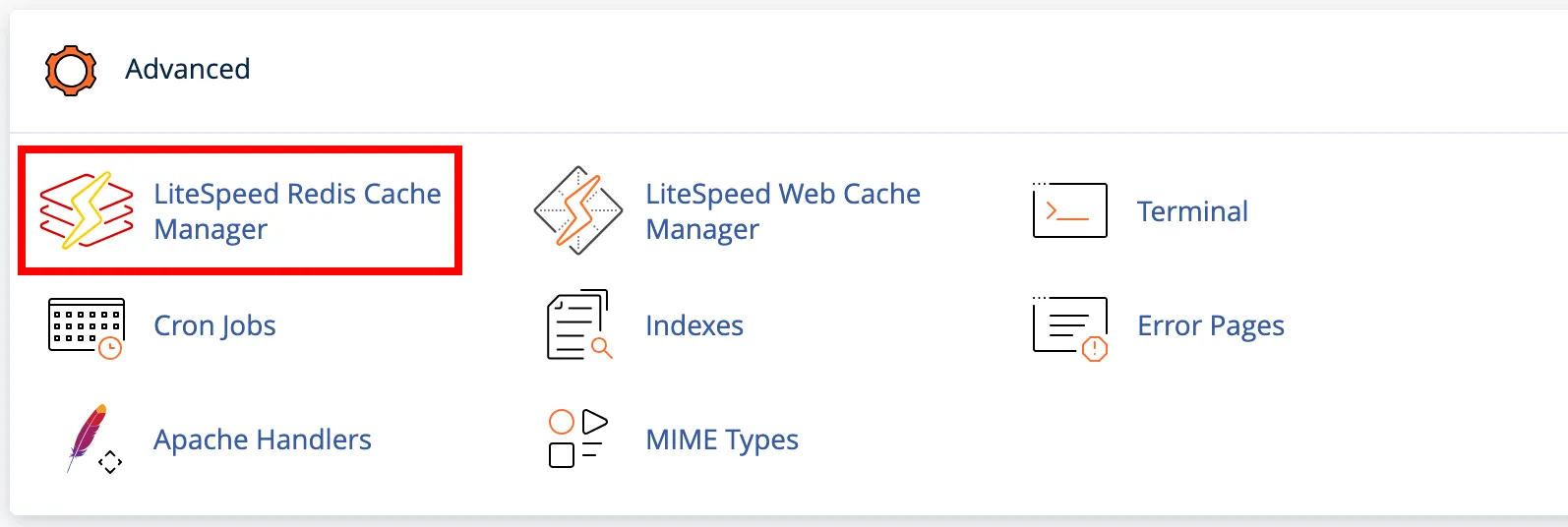
- Click Enable Redis Service.

- Click OK on the pop-up prompt to confirm enabling Redis.
A notification Enabled Redis successful should show confirming you’ve enabled and started the Redis service on your Ecenica WordPress Hosting.
Once you’ve enabled Redis you’ll need to configure a plugin on your WordPress site to use the Redis cache. We recommend LiteSpeed Caching, included with your Ecenica WordPress hosting plan. See our Best LiteSpeed Cache Settings for WordPress 2025 guide to configure your WordPress site to use the Redis object cache.
Managed WordPress Plans with Redis
Are you looking for a fast WordPress hosting provider with Redis Object Cache? Look no further than Ecenica. Our range of WordPress Hosting plans include LiteSpeed and Redis object caching, support multiple websites and provide you with the tools and support you need to manage them all easily.
Our platform is optimized for WordPress, so you can expect top-notch performance, security, and speed for all your sites.
Sign up for one of our Managed WordPress Hosting plans today and take advantage of our expertise and support. Visit our website to learn more about our plans and get started today!
