Uninstalling and removing an application you’ve previously installed using Softaculous App Installer is easy.
Steps to uninstall an app using Softaculous
- Log in to your Ecenica Dashboard.
- Click Manage next to your hosting service.
- Click Softaculous from the shortcuts.
- Click the All Installations box icon from the top menu.
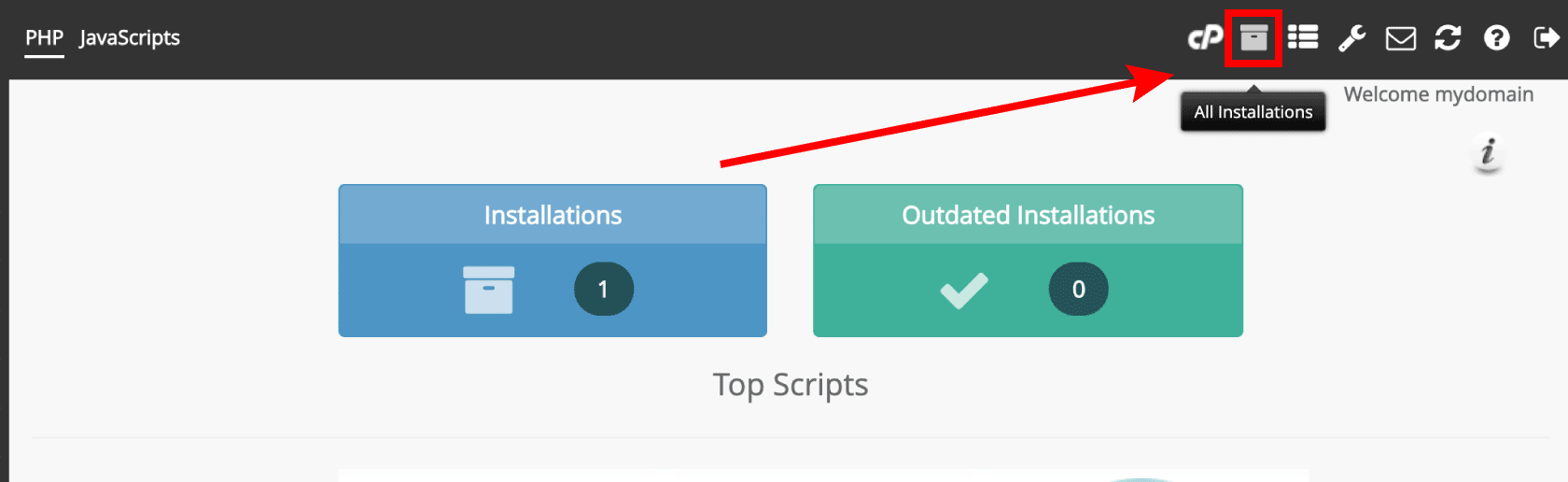
- Click the Remove button next to the app install you’d like to uninstall.

- By default all your apps’ files, database and database user will be removed. Uncheck options if you wish to keep any.
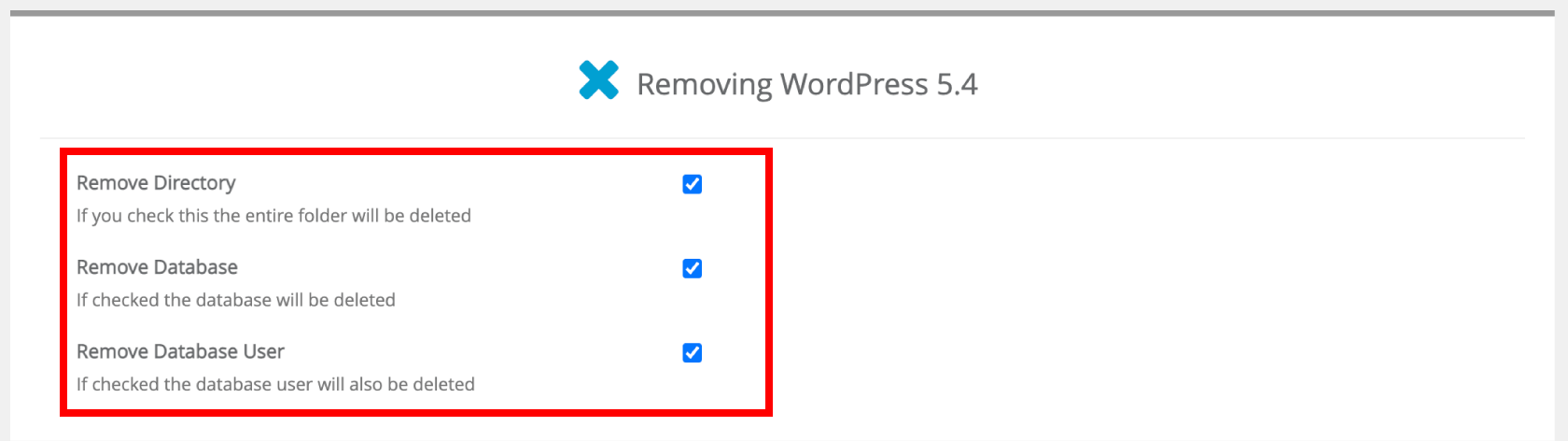
- Please double check the app info to check you are uninstalling the correct web app. Click Remove Installation to proceed.
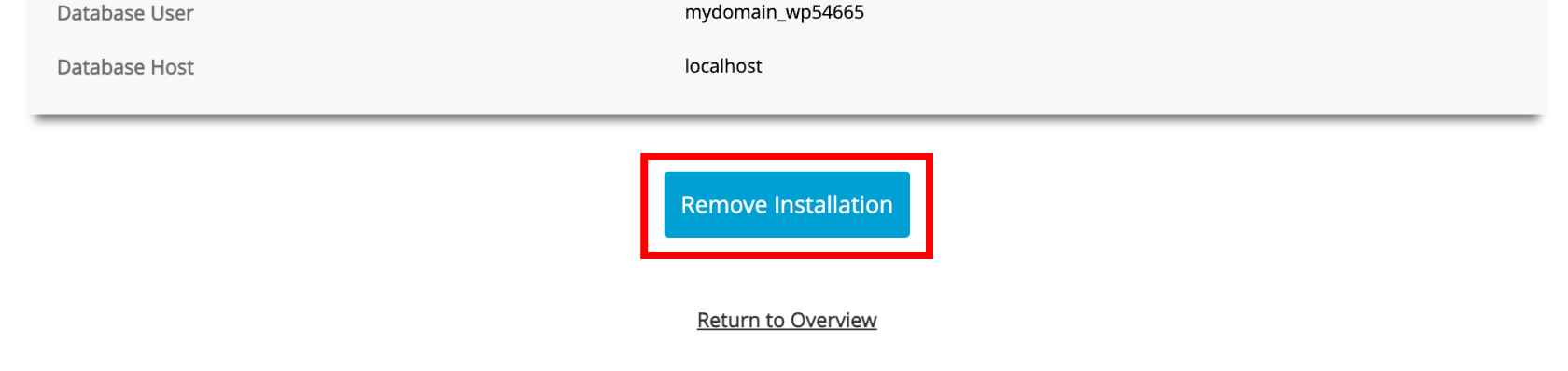
- Confirm the removal.

The uninstall will take a few seconds to complete.
Notes
- Removing the installation via App Installer will remove files and directories associated with your app. It will not delete custom files or directories in the web root you have added. If you wish to remove everything you will need to use File Manager or FTP to delete any additional files or directories.

