Debugging WordPress helps you quickly find and fix errors and warnings in your WordPress site code, plugins and themes.
By default, WordPress does not show warnings or errors. Enabling debugging is easy with Ecenica WordPress Manager and also possible through editing your website’s wp-config.php file. We outline both methods below.
Steps to enable WordPress debug mode in WordPress Manager
- Log in to your Ecenica Dashboard
- Click Manage next your Ecenica hosting service.
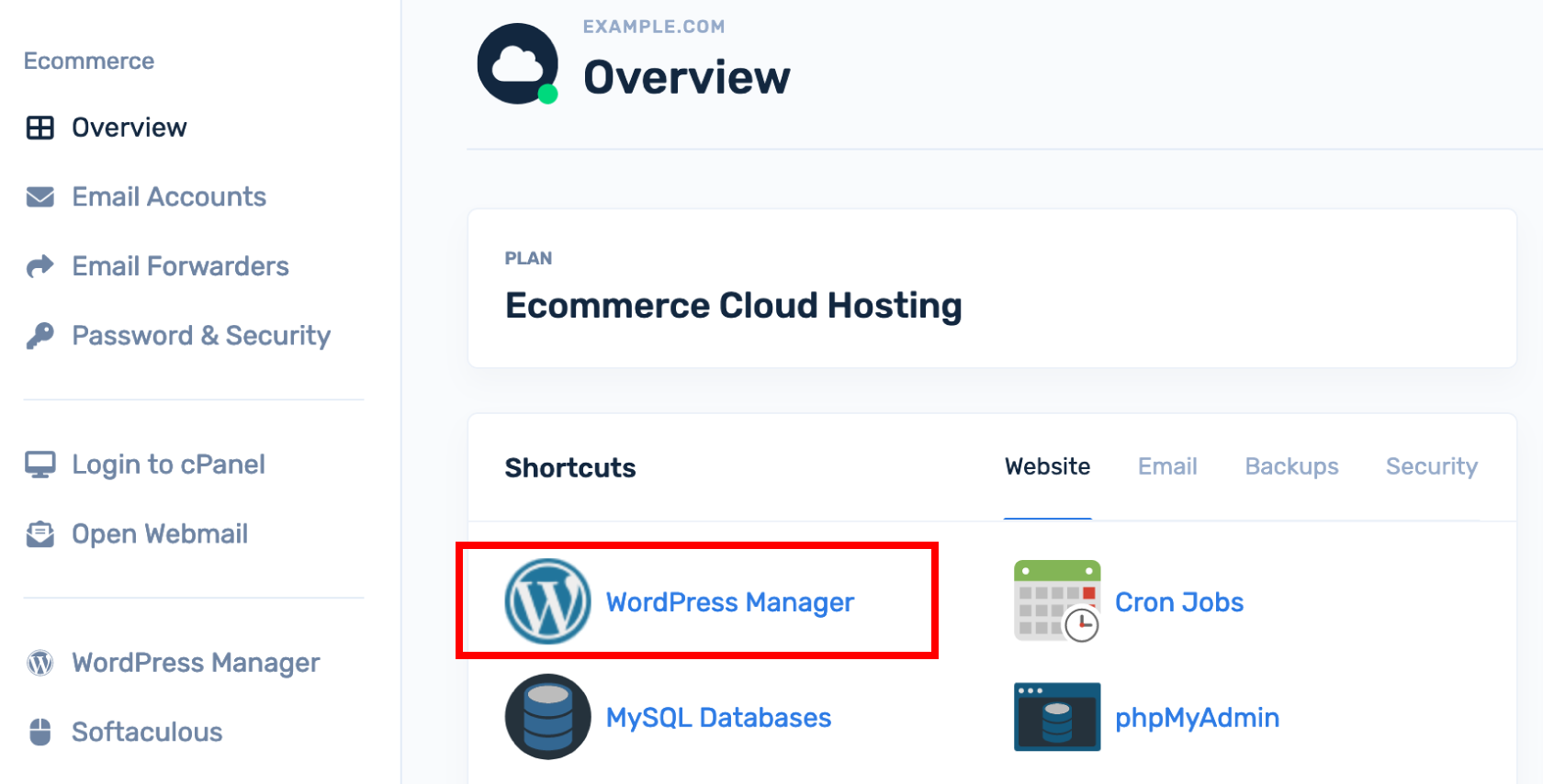
- Click WordPress Manager.
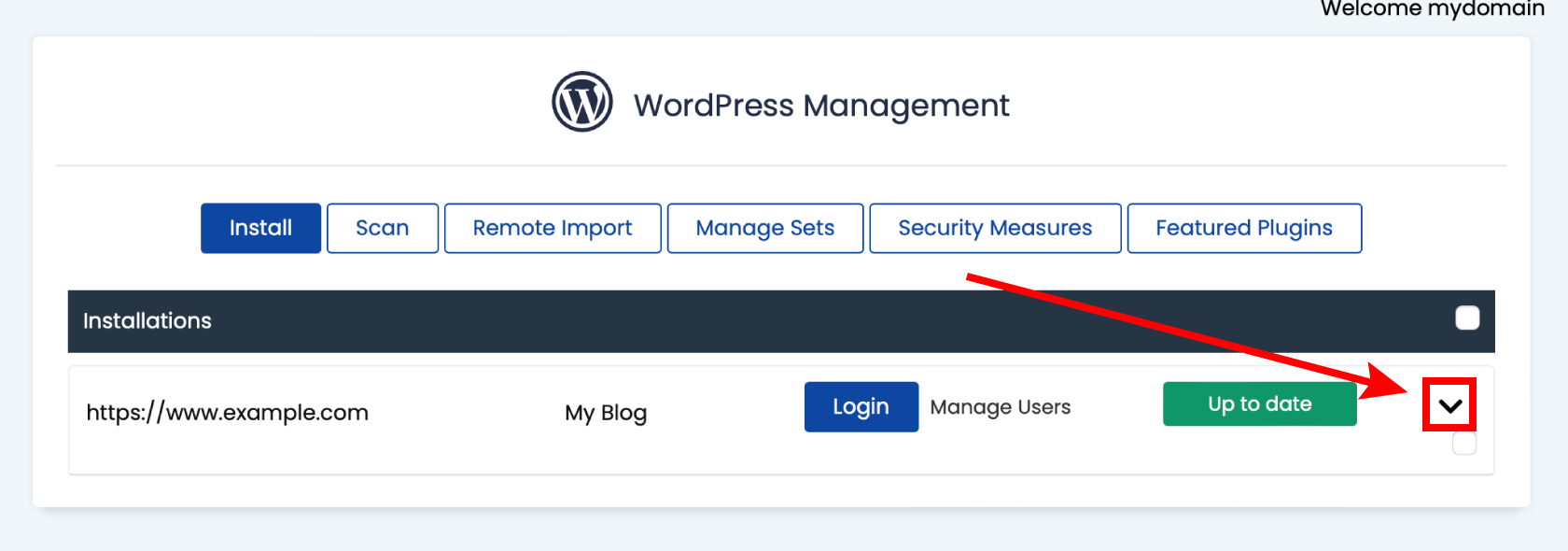
- Click the down arrow to open your website’s options.
- Select Enable under Debug Mode.

Steps to enable WordPress debug mode in wp-config.php
- Open wp-config.php in your code editor or in cPanel File Manager
- Add the following line
define( 'WP_DEBUG', true );
- Save your changes
Your WordPress site will now display any errors, notices and warnings from your plugins, themes and code.
For security we strongly recommend disabling WP_DEBUG once you’ve finished debugging.
