File Manager is a web-based tool in your Ecenica cPanel that lets you upload, download, edit, and manage all your website files directly in your browser, no additional software needed.
What Can You Do with File Manager?
File Manager allows you to:
- Upload files and folders to your website
- Download files from your hosting to your computer
- Edit files directly (HTML, CSS, PHP, etc.)
- Delete files and folders
- Extract (unzip) archives
- Create zip Archives
- Create new files and folders
- Move and copy files
- Change file permissions
- Rename files and folders
- Compress files into archives
Quick Navigation
Getting Started
Common Tasks
- Upload Files
- Download Files
- Edit Files
- Delete Files
- Extract (Unzip) Archives
- Create Zip Archives
- Create New Files or Folders
- Move or Copy Files
- Change File Permissions
Tips & Troubleshooting
How to Access File Manager
- Log in to Ecenica Dashboard
- Click Services > My Services.
- Click Manage next to your Ecenica web hosting service.
- Click File Manager.
File Manager will open in a new browser tab showing your web hosting files.
Understanding File Manager Directories
When you open File Manager, you’ll see several folders. Here’s what they mean:
public_html
Your main website folder. All files in this folder are publicly accessible on the web from your primary or alias domain.
- Put your website files here (HTML, CSS, images, etc.)
- This is where WordPress, Joomla, and other CMS installations go
- Files here are accessible at your primary domain name.
Example:
- File: public_html/about.html → Accessible at yourdomain.com/about.html
- Image: public_html/images/logo.png → Accessible at yourdomain.com/images/logo.png
public_ftp
Files you upload via FTP are stored here temporarily.
Email-related files. Don’t modify this folder unless directed by support.
etc
Configuration files for your Ecenica web hosting service. Generally, you won’t need to access or modify this directory.
tmp
Temporary files. This folder is automatically cleaned periodically.
Root Directory (Home Directory)
The top-level folder (often shown as /home/username/). Contains all the folders above plus:
- logs – Server logs
- .htpasswds – Password files for protected directories
- Configuration files
What directory should I choose?
- To manage website files: Navigate to public_html
- To see everything: Stay in Home Directory (root)
How to Upload Files
Steps to Upload
- In File Manager, open the directory where you want to upload files
- For website files, open public_html

- For website files, open public_html
- Click Upload in the toolbar

- Either:
- Drag and drop files directly into the upload area, or
- Click Select File to browse for files on your computer
- A progress bar will show the upload status
- When complete, click Go Back to… to return to File Manager
Your files are now uploaded and live on your Ecenica web hosting.
How to Download Files
Download a Single File
- Select the file you want to download (click once to highlight it)
- Click Download in the toolbar
- The file will download to your computer’s default download location
Download Multiple Files
To download multiple files:
- Select all the files you want (hold Ctrl/Cmd and click each file)
- Right-click and choose Compress
- Choose Zip Archive and click Compress File(s)
- Download the resulting zip file
- Extract it on your computer
How to Edit Files
File Manager includes a built-in code editor for making quick changes to files without downloading and re-uploading them.
Steps to Edit a File
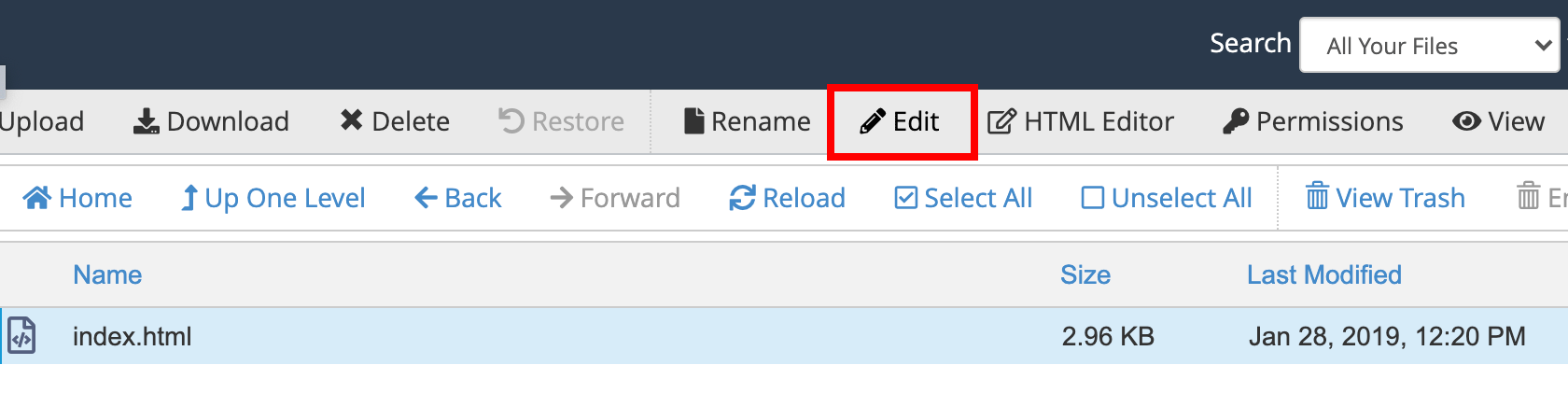
- Select the file you want to edit

- Click Edit in the toolbar
- A pop-up will ask about file encoding
- File Manager auto-detects the correct encoding
- Click Edit to proceed
- To skip this prompt in future, click Disable Encoding Check

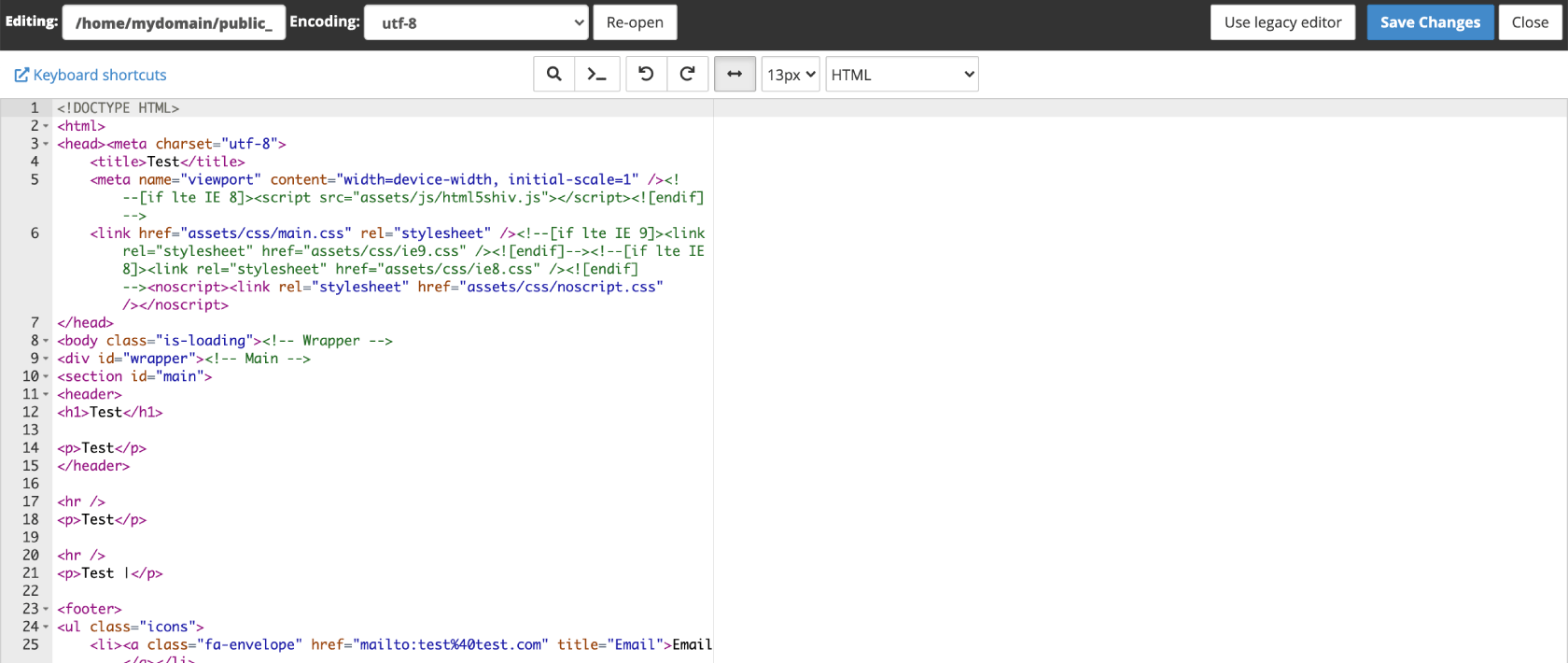
- The file editor opens in a new tab
- Make your changes
- Click Save Changes when done
- Click Close to exit without saving
What File Types Can I Edit?
You can edit any text-based file:
- HTML (
.html,.htm) - CSS (
.css) - PHP (
.php) - JavaScript (
.js) - Configuration files (
.htaccess,.conf,.ini) - Text files (
.txt,.md)
You cannot edit binary files (images, PDFs, videos, etc.).
Editor Features
The File Manager editor includes:
- Syntax highlighting for code
- Line numbers
- Search and replace (Ctrl+F / Cmd+F)
- Auto-indentation
- Undo/redo
How to Delete Files
Steps to Delete
- Select the file(s) or folder(s) you want to delete
- Hold Ctrl/Cmd to select multiple items
- Hold Ctrl/Cmd to select multiple items
- Click Delete in the toolbar

- A confirmation window appears:
- Default: Files go to the Trash folder (can be recovered)
- Permanent: Tick “Skip the trash and permanently delete” to delete immediately
- Click Confirm

Recovering Deleted Files
Files sent to Trash can be recovered:
- In File Manager, look for the Trash folder in your home directory
- Find your deleted files
- Select them and click Move
- Choose where to restore them
- Click Move File(s)
Note: Files in Trash may be permanently deleted after 30 days or when you empty the trash.
How to Extract (Unzip) Archives
If you’ve uploaded a zip file and want to extract its contents:
Steps to Extract
- Select your archive file (
.zip,.gz,.bz2) - Click Extract in the toolbar
- A window appears showing where files will be extracted
- Default: Same folder as the archive
- To choose a different location, enter the path
- Click Extract File(s)
The archive contents are now extracted to your chosen location.
What Archive Types Are Supported?
File Manager can extract:
- .zip (most common)
- .gz (gzip)
- .bz2 (bzip2)
- .tar
- .tar.gz
How to Create Zip Archives
To create a zip file:
- Select the file(s) or folder(s) you want to compress
- Hold Ctrl/Cmd to select multiple items
- Hold Ctrl/Cmd to select multiple items
- Right-click and choose Compress
- Choose Zip Archive
- Enter a name for the archive
- Click Compress File(s)
Please note, you must have enough storage space to create your archive file.
What Archive Types Are Supported?
File Manager can create:
- .zip (most common)
- .gz (gzip)
- .bz2 (bzip2)
- .tar
- .tar.gz
How to Create New Files or Folders
Create a New File
- Navigate to where you want the file
- Click + File in the toolbar
- Enter the filename (including extension, e.g.,
index.html) - Click Create New File
The file is created empty. You can then edit it.
Create a New Folder
- Navigate to where you want the folder
- Click + Folder in the toolbar
- Enter the folder name
- Click Create New Folder
How to Move or Copy Files
Move Files
- Select the file(s) or folder(s)
- Click Move in the toolbar
- Enter or browse to the destination path
- Click Move File(s)
The files are moved to the new location.
Copy Files
- Select the file(s) or folder(s)
- Click Copy in the toolbar
- Enter or browse to the destination path
- Click Copy File(s)
A duplicate is created in the new location. The original remains.
How to Change File Permissions
File permissions control who can read, write, or execute files on the server.
Steps to Change Permissions
- Select the file or folder
- Click Permissions in the toolbar (or right-click > Permissions)
- A window shows the current permissions
- Either:
- Tick the checkboxes for User, Group, and World permissions, or
- Enter a numeric value (e.g., 644, 755)
- For folders, tick Recurse into subdirectories to apply to all contents
- Click Change Permissions
Common Permission Settings
- 644 Standard file permission (readable by all, writable by owner)
- 755 Standard folder permission (executable/browsable by all)
- 600 Private file (only owner can read/write)
Common Issues and Solutions
“I can’t upload large files”
Problem: Upload fails for files over a certain size.
Solution:
- Check your available storage space
- For very large files (over 2GB), use FTP instead of File Manager
“My changes aren’t showing on the website”
Problem: You edited a file but the website looks the same.
Solution:
- Clear your browser cache (Ctrl+Shift+R / Cmd+Shift+R)
- Check you edited the correct file
- Check the file saved properly (re-open it in File Manager)
- If using WordPress, clear any caching plugins
“I accidentally deleted an important file”
Problem: You deleted a file you need.
Solution:
- Check the Trash folder in File Manager
- If not there, restore from a backup
- If no backup, contact Ecenica support—we may have automatic backups available
“I can’t edit .htaccess – it’s not visible”
Problem: Hidden files (starting with .) don’t appear.
Solution:
- In File Manager, click Settings (top right)
- Tick Show Hidden Files (dotfiles)
- Click Save
The .htaccess file will now be visible.
“Permission denied error”
Problem: Can’t edit, delete, or move a file.
Solution:
- Check the file permissions
- Change to appropriate permissions (644 for files, 755 for folders)
- If still denied, contact Ecenica support
“File Manager is slow or not loading”
Problem: File Manager won’t open or is very slow.
Solution:
- Try a different browser
- Clear browser cache and cookies
- Check if you have many files in one folder (thousands)—this can slow File Manager
- If the issue persists, contact Ecenica support
Frequently Asked Questions
Can I upload folders to File Manager?
Not directly. Zip the folder first, upload the zip, then extract it in File Manager.
What’s the maximum file size I can upload?
Up to your available storage space. However, uploads over 2GB are better done via FTP due to browser limitations.
Can I edit images in File Manager?
No. File Manager’s editor only works with text-based files. To edit images, download them, edit locally, then re-upload.
What happens if I delete public_html?
Your website will go offline.
Can I undo changes to a file after saving?
No. Once saved, changes are permanent. Always backup important files before editing.
How do I make a file private so it’s not accessible on the web?
Move it outside public_html (e.g., to your home directory), or use password protection to restrict access.
What encoding should I choose when editing files?
File Manager auto-detects correctly in most cases. UTF-8 is the most common for web files.
Can I preview HTML files before they go live?
You can view them by visiting their URL (e.g., yourdomain.com/test.html). For true staging, create a staging subdomain.
Is File Manager secure?
Yes, it uses SSL encryption. However, always use strong cPanel passwords and keep your login details secure.
Need Help?
If you’re having trouble using File Manager or need assistance with file management on your Ecenica hosting, contact Ecenica support and we’ll be happy to help you.