By default, you can login to your Kopage admin area using your Administrator’s email, where PIN code will be sent. If you prefer, you can set a username and password as an alternative way to log in.
Using a username and password to sign in to your Kopage admin is a convenient way of sharing access with your colleagues.
Sections
- Steps to enable login to Kopage admin with a Username and Password
- How to sign in to Kopage using your username and password
Steps to enable login to Kopage admin with a Username and Password
1. Log in to Kopage Admin.
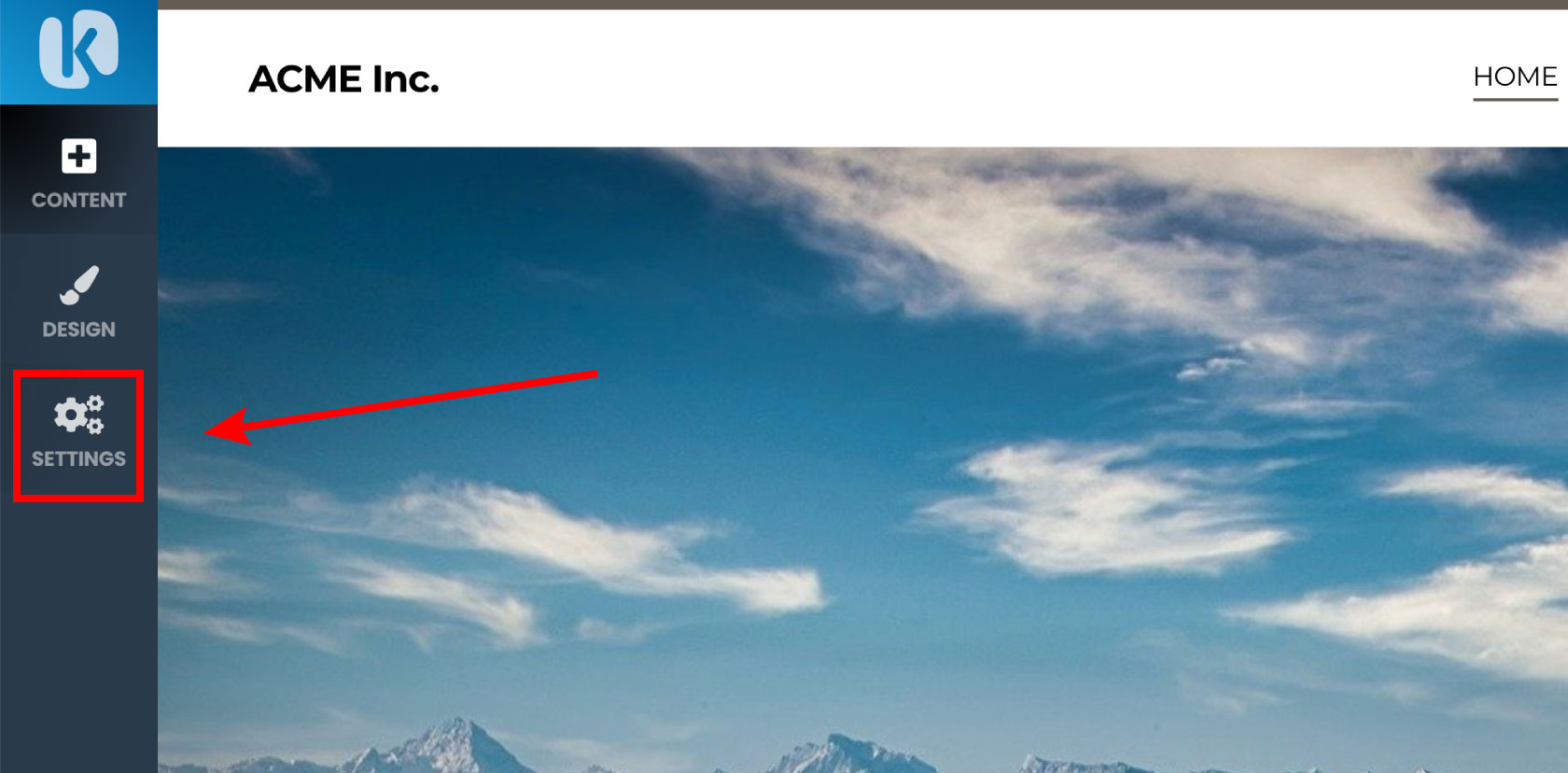
2. Click Settings.
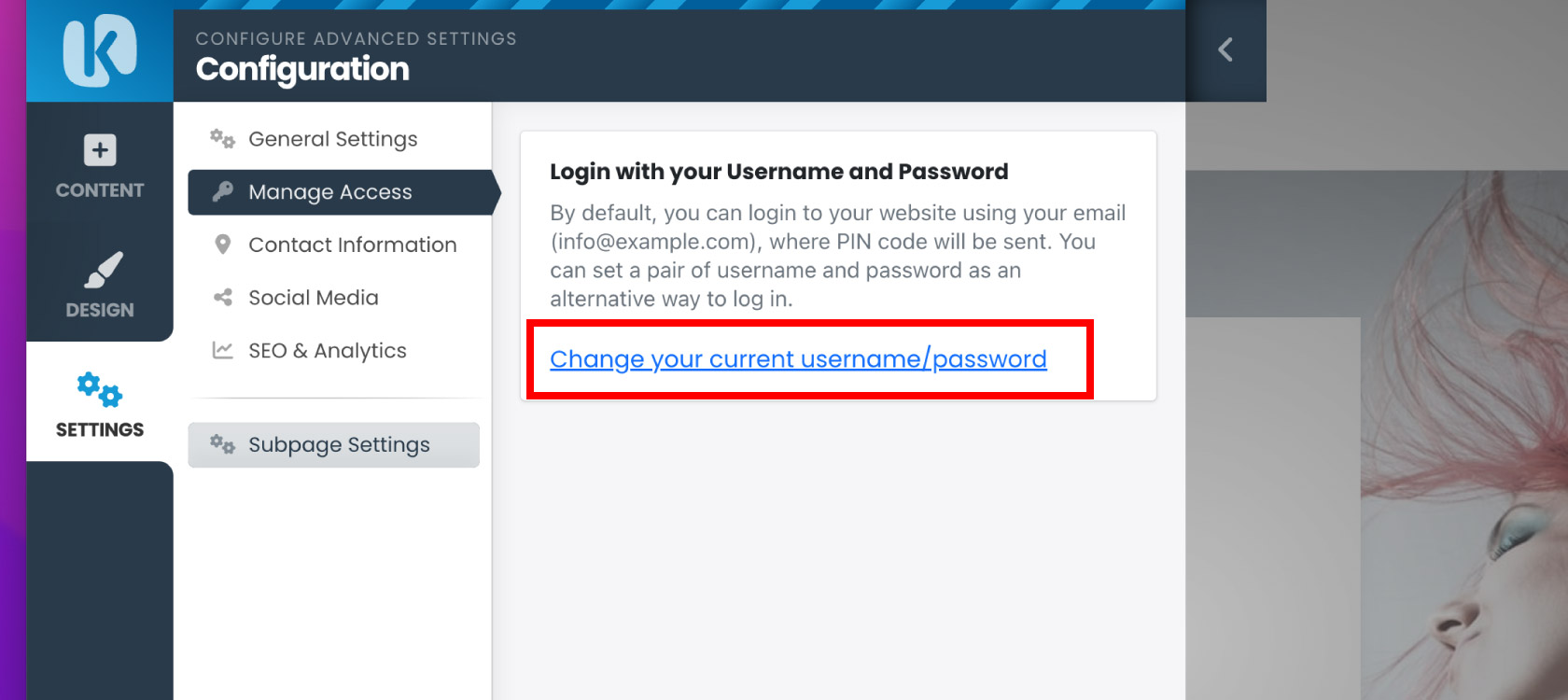
3. Click Manage Access.

4. Click Change your current username/password.
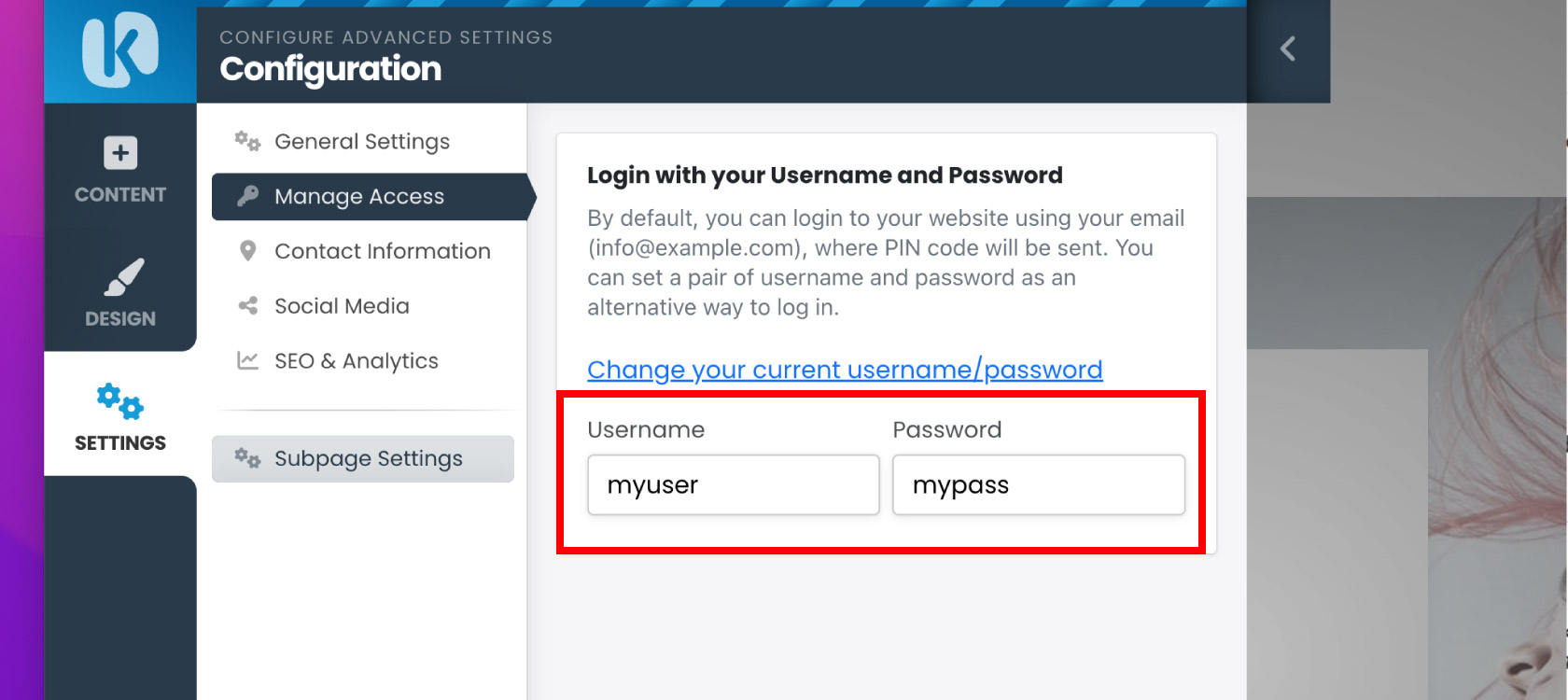
5. Enter a username and password you wish to use to log in with, click Save Changes.
How to sign in to Kopage using your username and password
1. Open your Kopage site and add /admin to your web browser address bar. For example, https://example.com/admin
2. Click More Options.
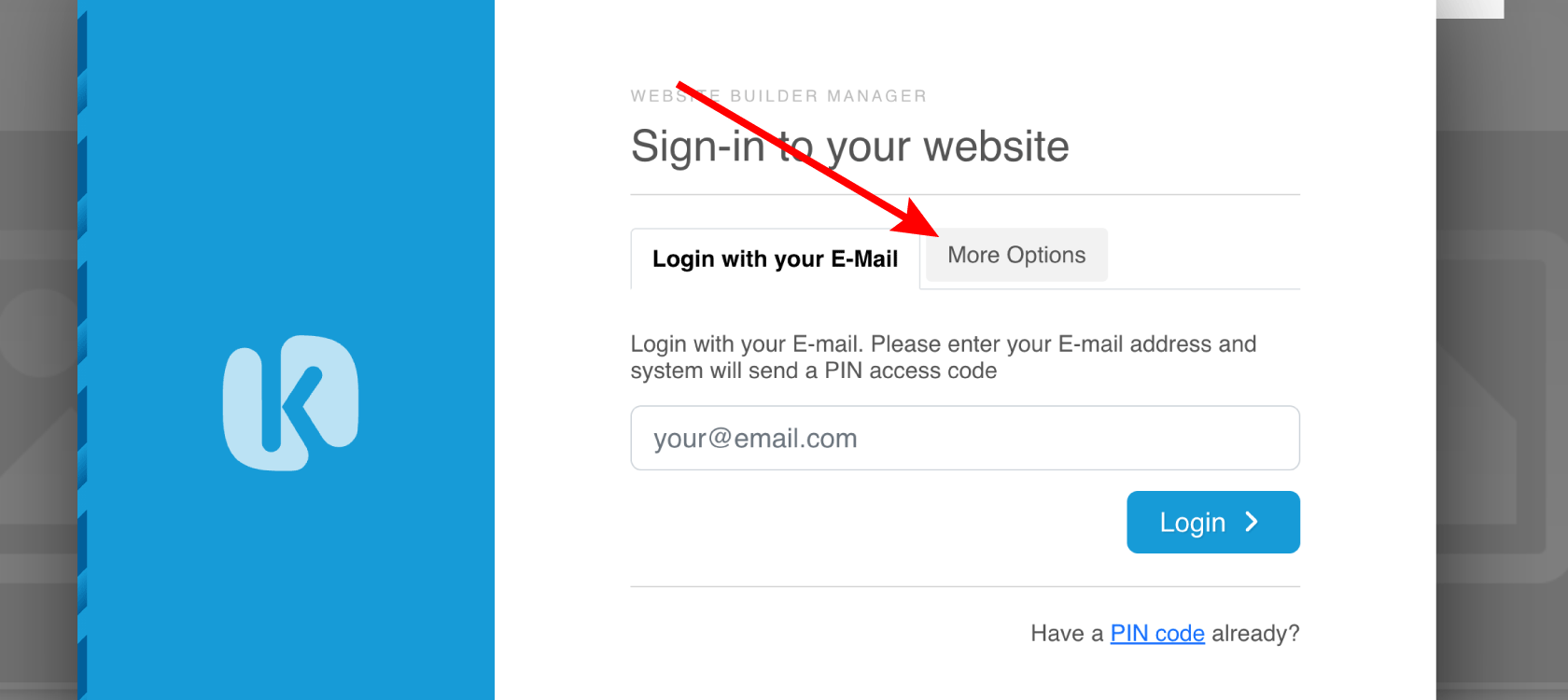
3. Click Login with your Username and Password.

4. Enter your username and password. Click Verify.

