Ecenica Cloud Hosting and WordPress hosting plans include SSH access allowing you to connect securely to your web space and run shell commands.
To access your Ecenica web hosting plan using SSH you’ll need to:
- Generate a new SSH Key.
- Download your private SSH key to your PC or Mac.
- Authorize your public SSH key.
Generate a new SSH Key
- Log in to cPanel.
- For help accessing your cPanel see Where do I log in to my hosting control panel.
- Click SSH Access.

- Click Manage SSH Keys.
- Click Generate a New Key.

- Enter a Key Name (or leave as default), Key Password, leave Key Type set to RSA and Key Size set as 2048. Click Generate Key.

- After the key has generated click Go Back.
Download the Private Key to your computer
- Under Private Keys, click View/Download.
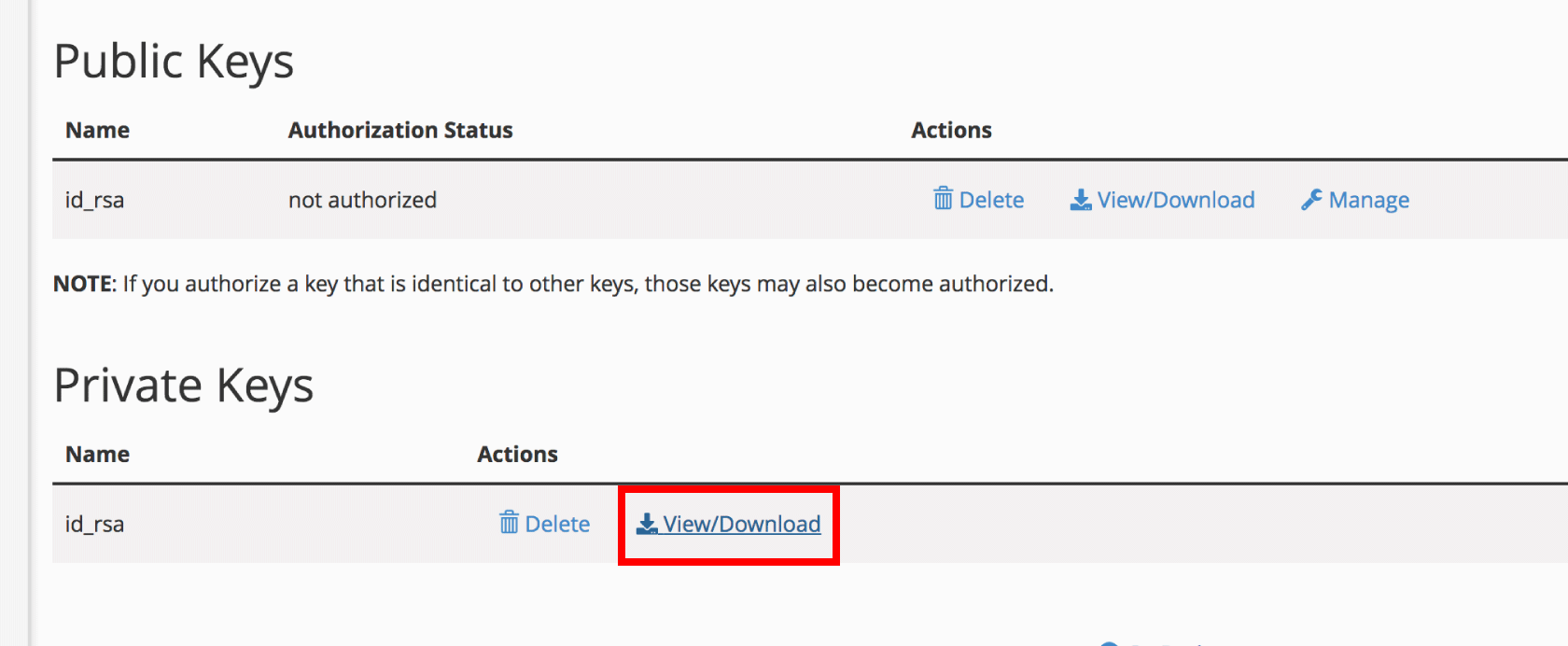
- Click Download Key and save to your PC or Mac.
Authorize the Public Key
- Under Public Keys, click Manage.
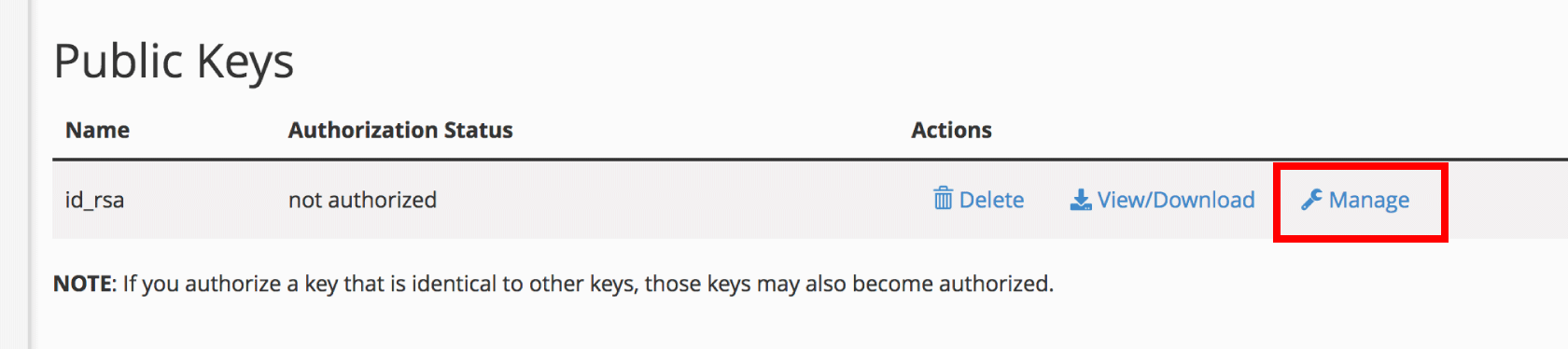
- Click Authorize.
