Learn how to enable to enable SMTP authentication in Apple Mail, Apple iPhone, Microsoft Outlook, Microsoft Outlook Express and Microsoft Windows Mail.
Apple iPhone, iPad and other iOS devices
- Go to Settings > Mail > Accounts
- Tap your Ecenica email account.
- Tap Account.
- Tap SMTP under Outgoing Mail Server
- Tap the Primary Server.
- Check the information for Outgoing Mail Server is set as follows:
- Host Name: mail.yourdomain.com
- Username: Your Ecenica email address. For example, info@example.com
- Password: Your mailbox password
- Use SSL: On
- Authentication: Password
- Server Port: 465
- Tap Done at the top right.
- Tap Done at the top right to save your changes.
Microsoft Outlook 365, Outlook 2019 and Outlook 2016
- Click File.

- Select your Ecenica email account from the drop-down list then click Account Settings > Server Settings…

- Click Outgoing mail
- Check the following Outgoing mail settings are set in Outlook:
- Server: mail.example.com, replacing example.com with your domain name.
- Port: 465
- Encryption method: SSL/TLS
- Require login using Secure Password Authentication (SPA): Unchecked
- My outgoing (SMTP) server requires authentication: Use same settings as my incoming mail server

- Click Next
- Click Done
Apple Mail on macOS
Enable SMTP authentication in Apple Mail App.
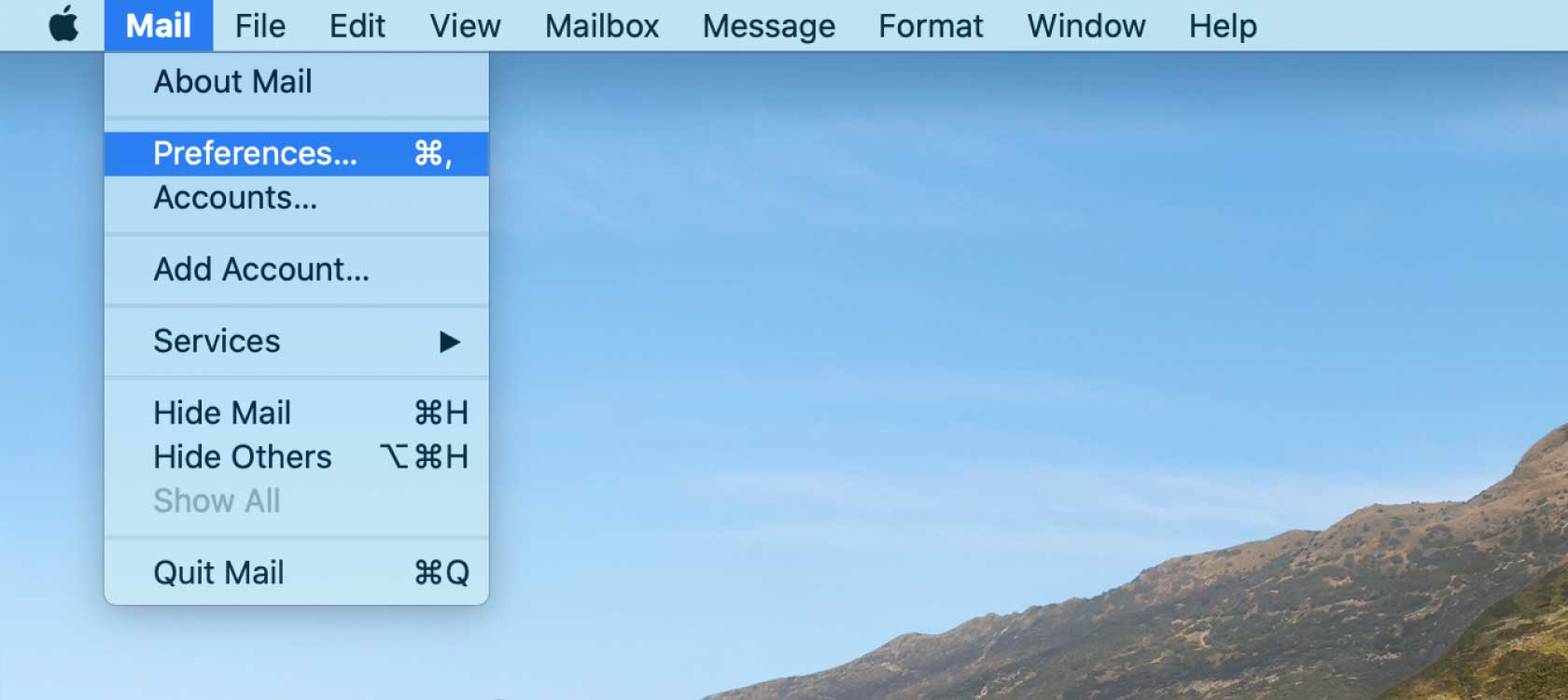
- Select the Mail menu and click Preferences.
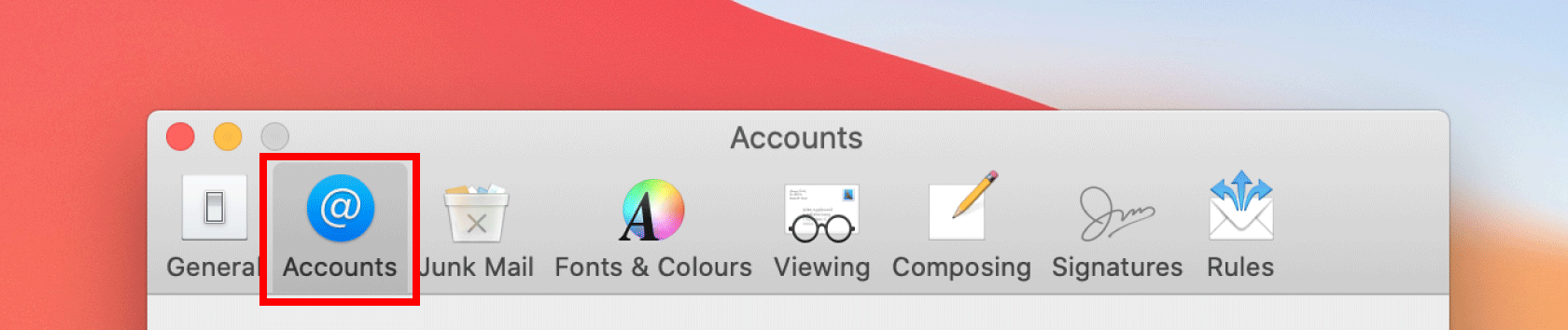
- Click the Accounts tab.
- Select your Ecenica email account on the left then click the Server Settings tab.

- Check the following settings:
- Outgoing server (SMTP) settings:
- User Name: Your Ecenica email address. For example, info@example.com
- Password: Your mailbox password
- Host name: mail.example.com, replacing example.com with your domain name.

- Outgoing server (SMTP) settings:
- Click Save and close the Accounts window.
Windows 10 Mail
- Click the Settings cog icon at the bottom left.
- Click Manage accounts. Click your Ecenica email account.
- Click Change mailbox sync settings
- Click Advanced mailbox settings
- Check the information is set as follows:
- Outgoing (SMTP) email server: mail.example.com, replacing example.com with your domain name.
- Outgoing server requires authentication: Ticked
- Use the same user name and password for sending email: Ticked
- Require SSL for outgoing email: Ticked
- Click Done
- Check your Password is set as your mailbox password.
- Click Save
